
To build a grid in Tailwind CSS, add grid to a container, set the number of columns with grid-cols-*, and control spacing with gap-*. Children can then span or position themselves with col-span-*, row-span-* and col-start-*. In Tailwind CSS v4 these utilities accept any number, so grid-cols-7 or col-span-9 work without configuration.
This guide covers the grid utilities you will reach for most often, the responsive patterns behind real landing page sections, and the v4 features (container queries, subgrid, CSS-first config) that change how grids are written.
Table of contents
- Grid basics: columns, rows and gap
- Spanning and placing items
- Responsive grids
- Bento and asymmetric layouts
- Subgrid and container queries
- Custom grid templates in v4
- FAQ
Grid basics: columns, rows and gap
A grid needs two things: display: grid on the parent and a column definition. grid-cols-3 compiles to grid-template-columns: repeat(3, minmax(0, 1fr)), which gives you three equal columns that can shrink below their content width. That minmax(0, 1fr) detail matters: it stops long words or wide images from blowing out a column.
<div class="grid grid-cols-3 gap-6">
  <div class="rounded-xl bg-white p-6 shadow-sm dark:bg-neutral-900">One</div>
  <div class="rounded-xl bg-white p-6 shadow-sm dark:bg-neutral-900">Two</div>
  <div class="rounded-xl bg-white p-6 shadow-sm dark:bg-neutral-900">Three</div>
</div>
Spacing between cells comes from gap-*, which uses the same spacing scale as padding and margin. In v4 the scale is driven by a single --spacing variable (0.25rem by default), so gap-6 is calc(var(--spacing) * 6), or 1.5rem. Use gap-x-* and gap-y-* when horizontal and vertical spacing should differ, which is common in card grids where rows need more breathing room than columns.
Rows work the same way. grid-rows-3 creates three equal rows, but most layouts let rows size to content and only define them for full-height app shells:
<div class="grid min-h-dvh grid-rows-[auto_1fr_auto]">
  <header class="border-b p-4">Header</header>
  <main class="p-4">Content fills the remaining height</main>
  <footer class="border-t p-4">Footer</footer>
</div>
The underscores in arbitrary values become spaces, so grid-rows-[auto_1fr_auto] outputs grid-template-rows: auto 1fr auto. This is the shortest way to build a sticky-footer page without flexbox.
Alignment inside the grid
Grid alignment utilities mirror flexbox ones. justify-items-* aligns items horizontally inside their cells, items-* aligns them vertically, and place-items-center does both. For single items, use justify-self-* and self-*. A full-screen centered layout is two classes: grid place-items-center.
Spanning and placing items
Items occupy one cell by default. col-span-2 stretches an item across two columns, and col-span-full spans every column, which is handy for section headings inside a grid. Rows follow the same pattern with row-span-*.
<div class="grid grid-cols-4 gap-4">
  <div class="col-span-full">Section heading</div>
  <div class="col-span-2 row-span-2">Large feature</div>
  <div>Small</div>
  <div>Small</div>
  <div class="col-span-2">Wide</div>
</div>
For exact placement, use line numbers. col-start-2 col-end-4 places an item from grid line 2 to line 4. Negative values are not part of the default utilities, but col-end-[-1] works as an arbitrary value when you need "to the last line" without knowing the column count.
When items have mixed spans, the browser may leave holes in the grid. grid-flow-dense tells the auto-placement algorithm to backfill earlier gaps with smaller items. It is useful for image galleries but changes visual order relative to DOM order, so avoid it when the reading order matters for keyboard and screen reader users.
Responsive grids
Tailwind is mobile-first, so you write the single-column layout first and add columns at larger breakpoints:
<div class="grid grid-cols-1 gap-6 sm:grid-cols-2 lg:grid-cols-3">
  <!-- cards -->
</div>
This is the pattern behind most feature and pricing sections. The OpenTailwind block below uses it to collapse a feature grid into a single column on phones.
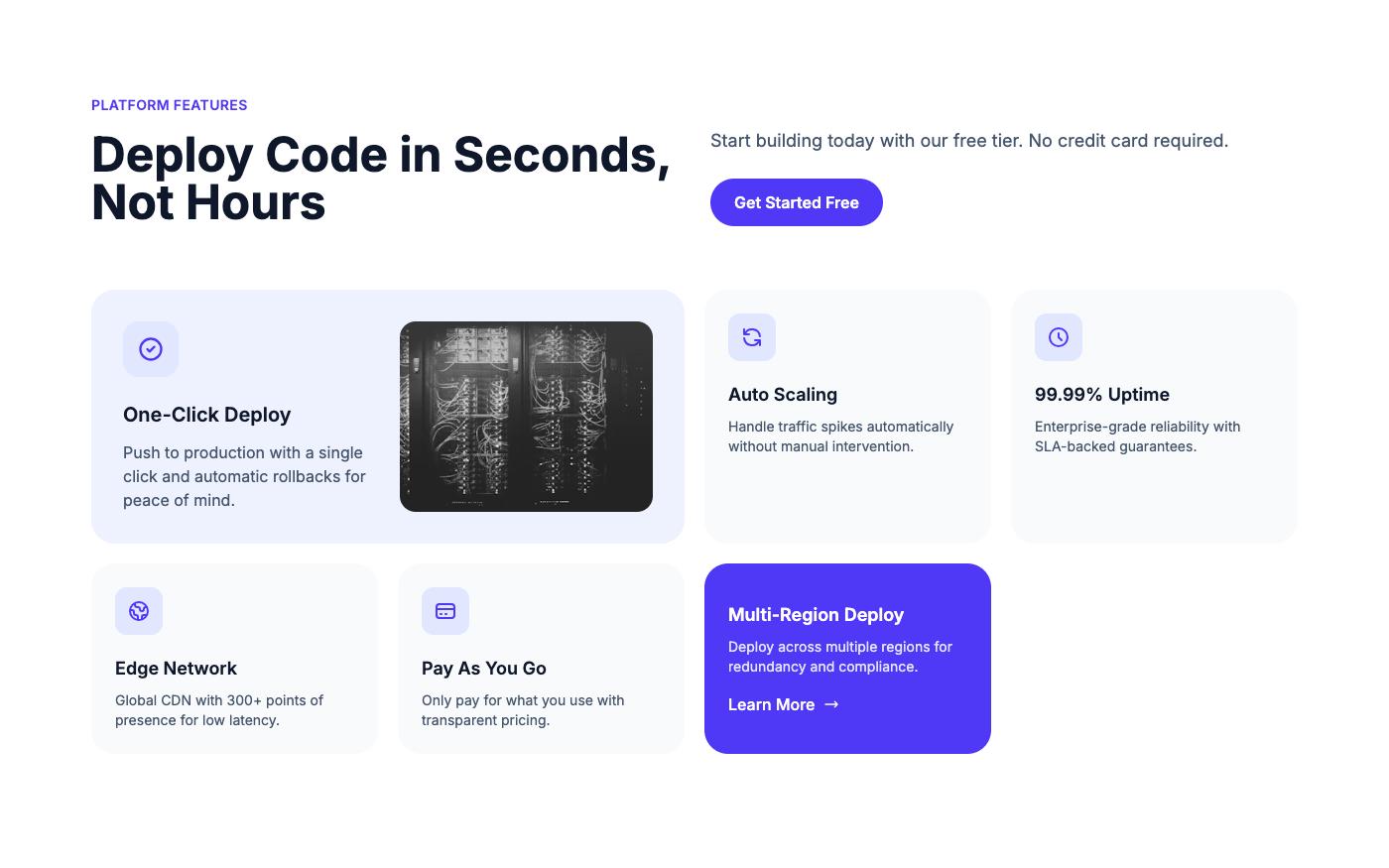
Auto-fit grids without breakpoints
When you don't care about exact column counts, let the browser decide. An arbitrary grid-cols-[repeat(auto-fit,minmax(16rem,1fr))] fits as many 16rem-or-wider columns as the container allows:
<div class="grid grid-cols-[repeat(auto-fit,minmax(16rem,1fr))] gap-6">
  <article class="rounded-xl border border-neutral-200 p-6 dark:border-neutral-800">...</article>
  <article class="rounded-xl border border-neutral-200 p-6 dark:border-neutral-800">...</article>
  <article class="rounded-xl border border-neutral-200 p-6 dark:border-neutral-800">...</article>
</div>
Use auto-fit when you want items to stretch and fill the row, and auto-fill when you want empty tracks to stay reserved so a single card doesn't stretch to full width. If one of the cards contains something wide, wrap the minimum in min() so it never overflows a narrow phone: minmax(min(16rem,100%),1fr).
Bento and asymmetric layouts
Bento grids, where one tile is larger than its neighbors, are just spans on a fixed column count. Define the grid at the breakpoint where the asymmetry appears and keep the mobile view as a simple stack:
<div class="grid gap-4 md:grid-cols-3 md:grid-rows-2">
  <div class="rounded-2xl bg-indigo-600 p-8 text-white md:col-span-2 md:row-span-2">
    Main feature
  </div>
  <div class="rounded-2xl bg-neutral-100 p-6 dark:bg-neutral-900">Secondary</div>
  <div class="rounded-2xl bg-neutral-100 p-6 dark:bg-neutral-900">Secondary</div>
</div>
A few practical rules keep bento layouts readable. Give the large tile the most important content, since it gets read first. Set a minimum height on tiles (min-h-56) so short copy doesn't collapse a row. And test with real text lengths, because a long headline in a small tile is the most common way these layouts break.

You can browse more grid-based sections in the features blocks and gallery blocks, all written with plain Tailwind v4 classes.
Subgrid and container queries
Aligning card content with subgrid
A classic problem with card grids is that titles, descriptions and buttons don't line up across cards when copy lengths differ. Subgrid solves it: the card becomes a grid that inherits the row tracks of its parent. Tailwind provides grid-rows-subgrid and grid-cols-subgrid.
<div class="grid grid-cols-1 gap-x-6 gap-y-10 md:grid-cols-3 md:grid-rows-[auto_1fr_auto]">
  <article class="grid gap-4 md:row-span-3 md:grid-rows-subgrid">
    <h3 class="text-lg font-semibold">Short title</h3>
    <p class="text-neutral-600 dark:text-neutral-400">Description of any length.</p>
    <a href="#" class="font-medium text-indigo-600">Learn more</a>
  </article>
  <!-- repeat -->
</div>
Each card spans three parent rows and adopts them with grid-rows-subgrid, so every "Learn more" link sits on the same line. Subgrid is supported in all current major browsers.
Container queries
Container queries are built into Tailwind v4, with no plugin required. Mark a parent with @container, then use variants like @md: and @xl: on children. The grid responds to the width of its container instead of the viewport, which makes the same component work in a sidebar and in a full-width section.
<section class="@container">
  <div class="grid grid-cols-1 gap-4 @md:grid-cols-2 @3xl:grid-cols-4">
    <!-- items -->
  </div>
</section>
Custom grid templates in v4
Tailwind v4 has no required tailwind.config.js. If you repeat the same arbitrary template in many places, give it a name with @utility in your main CSS file:
@import "tailwindcss";

@utility grid-cols-sidebar {
  grid-template-columns: 16rem minmax(0, 1fr);
}

@utility grid-cols-cards {
  grid-template-columns: repeat(auto-fill, minmax(min(18rem, 100%), 1fr));
}
Custom utilities work with every variant, so lg:grid-cols-sidebar and dark: or hover: prefixes behave as expected. Prefer a named utility over a long arbitrary value once you've used it three or more times; it's easier to read and change later.
Named grid areas are also available through arbitrary values. grid-areas isn't a built-in utility, but [grid-template-areas:'header_header'_'nav_main'] plus [grid-area:main] on children works when you need it. For most marketing layouts, spans and start/end lines are simpler.

FAQ
Should I use grid or flexbox in Tailwind?
Use grid when you're laying out items in two dimensions or want columns to line up across rows, such as card grids and page shells. Use flexbox for one-dimensional rows of items like navbars, button groups and icon-plus-text pairs. Many sections combine both: a grid of cards where each card uses flexbox inside.
How do I make a grid with more than 12 columns?
In Tailwind v4, grid-cols-* accepts any positive integer, so grid-cols-16 works out of the box. In v3 you had to extend the config or use an arbitrary value.
Why is my grid column overflowing?
Usually a child has a minimum content width, like a long URL or a pre block. Tailwind's numbered columns already use minmax(0, 1fr), but custom templates with plain 1fr don't. Use minmax(0,1fr) in arbitrary values, or add min-w-0 to the child.
Does Tailwind v4 support masonry layouts?
Not as a grid utility, since CSS masonry isn't broadly supported yet. The common workaround is CSS columns: columns-3 gap-4 with break-inside-avoid and a bottom margin on each item.
Tailwind's grid utilities are a thin layer over CSS Grid, so most of what you learn transfers directly to plain CSS. Start with grid, grid-cols-* and gap-*, add breakpoints or container queries for responsiveness, and reach for subgrid and @utility when card alignment or repeated templates become a problem. If you'd rather start from working layouts, a free OpenTailwind account includes 100 blocks you can copy after signing in, and if you'd rather not hand-code it, Lindo.ai can build a site from any OpenTailwind template with AI.