
Tailwind CSS does not make a site accessible or inaccessible on its own; it gives you utilities, and accessibility depends on the HTML you write and the classes you choose. This checklist covers the Tailwind v4 utilities and variants that matter most: visible focus styles, screen reader text, color contrast, reduced motion, ARIA state styling and accessible forms.
Use it as a review pass before shipping a page or a component. Each item includes the classes to use and the mistake to avoid.
Table of contents
- 1. Start with semantic HTML
- 2. Keep focus visible
- 3. Add screen reader text
- 4. Check color contrast in both themes
- 5. Respect reduced motion
- 6. Style state with ARIA variants
- 7. Build accessible forms
- FAQ
1. Start with semantic HTML
Utility classes make it easy to style a div to look like anything. That is the main accessibility risk with any utility-first framework. A div styled as a button is not focusable, does not respond to Enter or Space, and is not announced as a button.
- Use
<button>for actions and<a href>for navigation. - Use landmarks:
<header>,<nav>,<main>,<footer>. Give multiplenavelements distinctaria-labelvalues. - Keep one
<h1>per page and do not skip heading levels. Pick heading tags for structure, then size them withtext-*classes. - Use lists for groups of links, cards or features so screen readers announce the item count.
<!-- Avoid -->
<div class="cursor-pointer rounded-lg bg-indigo-600 px-4 py-2 text-white" onclick="save()">Save</div>

<!-- Use -->
<button type="button" class="cursor-pointer rounded-lg bg-indigo-600 px-4 py-2 text-white">Save</button>
Note that Tailwind v4 changed the default button cursor from pointer to default to match browser behavior. Add cursor-pointer if your design expects it; it has no effect on accessibility either way.
2. Keep focus visible
Keyboard users need to see where focus is. The most common Tailwind accessibility bug is removing the outline with no replacement.
Use focus-visible: instead of focus: for most interactive elements. It shows the indicator for keyboard navigation and usually hides it after a mouse click.
<a href="/pricing"
   class="rounded-md text-indigo-600 focus-visible:outline-2 focus-visible:outline-offset-2 focus-visible:outline-indigo-600 dark:text-indigo-400 dark:focus-visible:outline-indigo-400">
  See pricing
</a>
Two v4 details are worth knowing:
outline-hiddenvsoutline-none. In v4,outline-hiddenhides the outline but keeps a transparent one that appears in Windows forced colors mode.outline-nonenow setsoutline-style: noneand removes it completely. If you hide the default outline, preferoutline-hiddenand add your own focus style.ringis 1px by default. In v3,ringwas 3px. In v4 it is 1px and usescurrentColor. Usefocus-visible:ring-2plus a color class for a visible indicator.
Checklist items: every link, button and form control shows a visible focus state in light and dark mode; focus order follows the visual order; nothing that is hidden can receive focus.
3. Add screen reader text
sr-only hides content visually while keeping it available to assistive technology. Use it for icon-only buttons, extra link context and skip links.
<!-- Skip link: hidden until focused -->
<a href="#main"
   class="sr-only focus:not-sr-only focus:fixed focus:top-4 focus:left-4 focus:z-50 focus:rounded-md focus:bg-white focus:px-4 focus:py-2 focus:text-neutral-900">
  Skip to content
</a>

<!-- Icon-only button -->
<button type="button" class="rounded-full p-2 text-neutral-600 hover:bg-neutral-100 dark:text-neutral-400 dark:hover:bg-neutral-800">
  <svg aria-hidden="true" class="size-5" viewBox="0 0 20 20">...</svg>
  <span class="sr-only">Open menu</span>
</button>
Decorative SVGs and icons should have aria-hidden="true". Meaningful images need a descriptive alt; decorative images need alt="". Generic link text like "Learn more" repeated across a features grid should get extra context, either visible or through sr-only.
4. Check color contrast in both themes
WCAG 2.2 level AA asks for a contrast ratio of at least 4.5:1 for body text and 3:1 for large text and for UI component boundaries such as input borders and focus indicators. Tailwind's palette makes it easy to pick shades that fail, especially muted grays and light accent colors.
- On white backgrounds, gray body text around the 600 shade and darker is a safer starting point than 400.
- In dark mode, check text on
neutral-900andneutral-950separately; a shade that works on one may be borderline on the other. - Placeholder text in v4 defaults to the current text color at 50% opacity. Do not rely on placeholder text for instructions; use a visible label.
- Text on images or gradients needs an overlay, such as
bg-black/50, so contrast holds across the whole image.
Verify with a contrast checker or your browser's accessibility panel rather than by eye. Tailwind also provides a contrast-more: variant for users who request higher contrast at the OS level:
<p class="text-neutral-500 contrast-more:text-neutral-800 dark:text-neutral-400 dark:contrast-more:text-neutral-100">
  Billed annually
</p>
There is also a forced-colors: variant for Windows High Contrast mode, useful when a custom control relies on background color alone.
5. Respect reduced motion
Scroll animations, marquees and carousels can cause discomfort for users with vestibular disorders. Tailwind provides motion-safe: and motion-reduce: variants based on the prefers-reduced-motion media query.
<!-- Only animate when the user has not asked for reduced motion -->
<div class="motion-safe:animate-bounce">...</div>

<!-- Stop an infinite marquee (animate-marquee is a custom @theme animation) -->
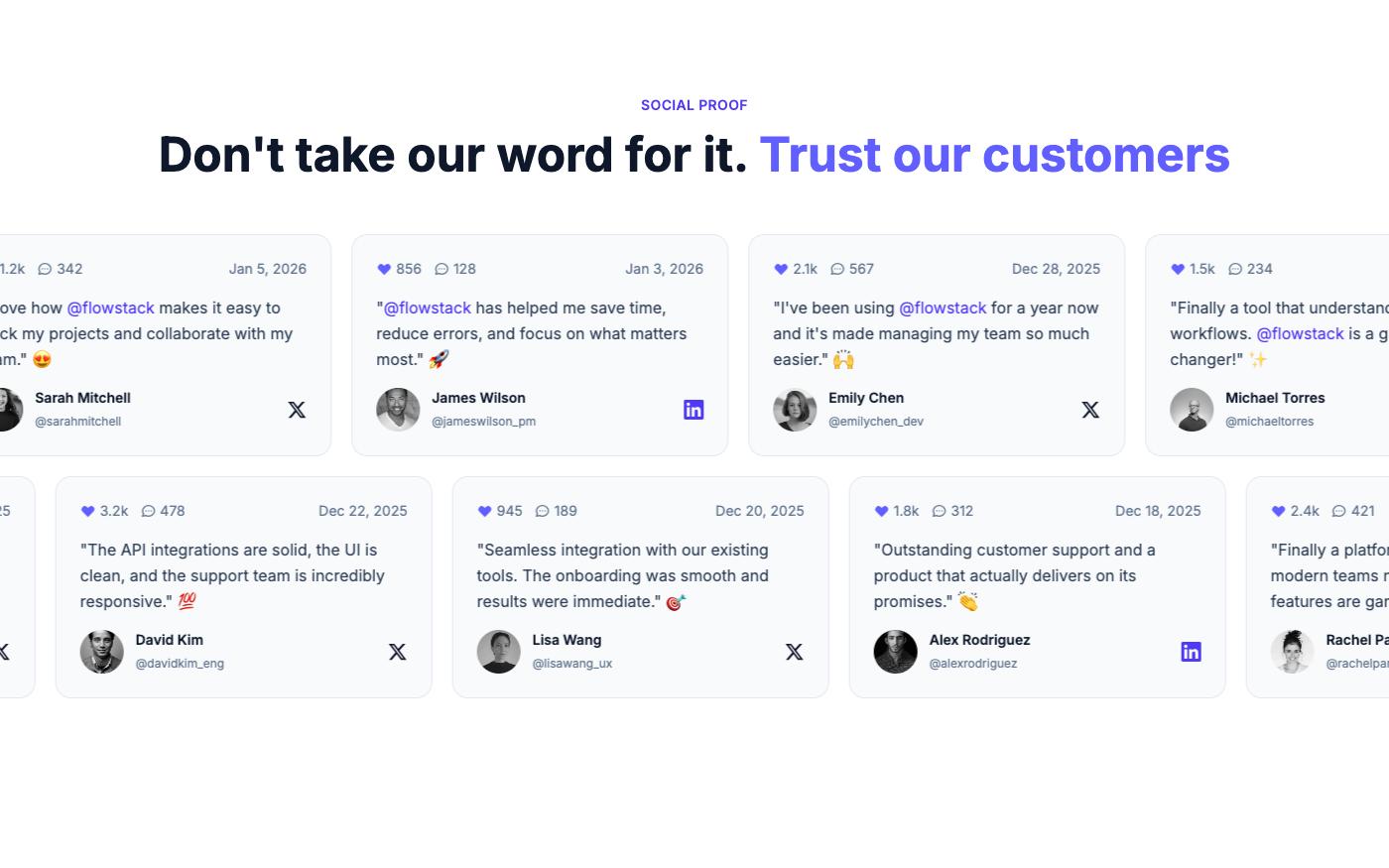
<div class="flex animate-marquee motion-reduce:animate-none">...</div>
Checklist items: auto-playing content can be paused; infinite marquees stop or slow down under motion-reduce; content that fades in on scroll is still readable if the animation never runs.
6. Style state with ARIA variants
If a component's state is stored in ARIA attributes, style it from those attributes. That keeps the visual state and the announced state in sync, because there is only one source of truth.
<button type="button" aria-expanded="false" aria-controls="faq-1"
        class="group peer flex w-full items-center justify-between py-4 text-left font-medium">
  How do refunds work?
  <svg aria-hidden="true" class="size-5 transition-transform group-aria-expanded:rotate-180" viewBox="0 0 20 20">...</svg>
</button>
<div id="faq-1" class="hidden peer-aria-expanded:block">...</div>
Built-in variants include aria-expanded:, aria-selected:, aria-checked:, aria-disabled:, aria-pressed: and others. For attributes with values, use arbitrary syntax like aria-[sort=ascending]:. The group-aria-* and peer-aria-* forms style siblings and children.
Your script only has to flip aria-expanded between "true" and "false"; the icon rotation and the panel visibility follow from that one attribute. A native <details> element is another option that gives you keyboard support with no script. If you want a shorter custom variant, such as expanded:, v4 lets you define one in CSS:
@import "tailwindcss";

@custom-variant expanded (&[aria-expanded="true"]);
Accordions are a good place to test all of this. The FAQ blocks below use buttons for toggles and show focus states.
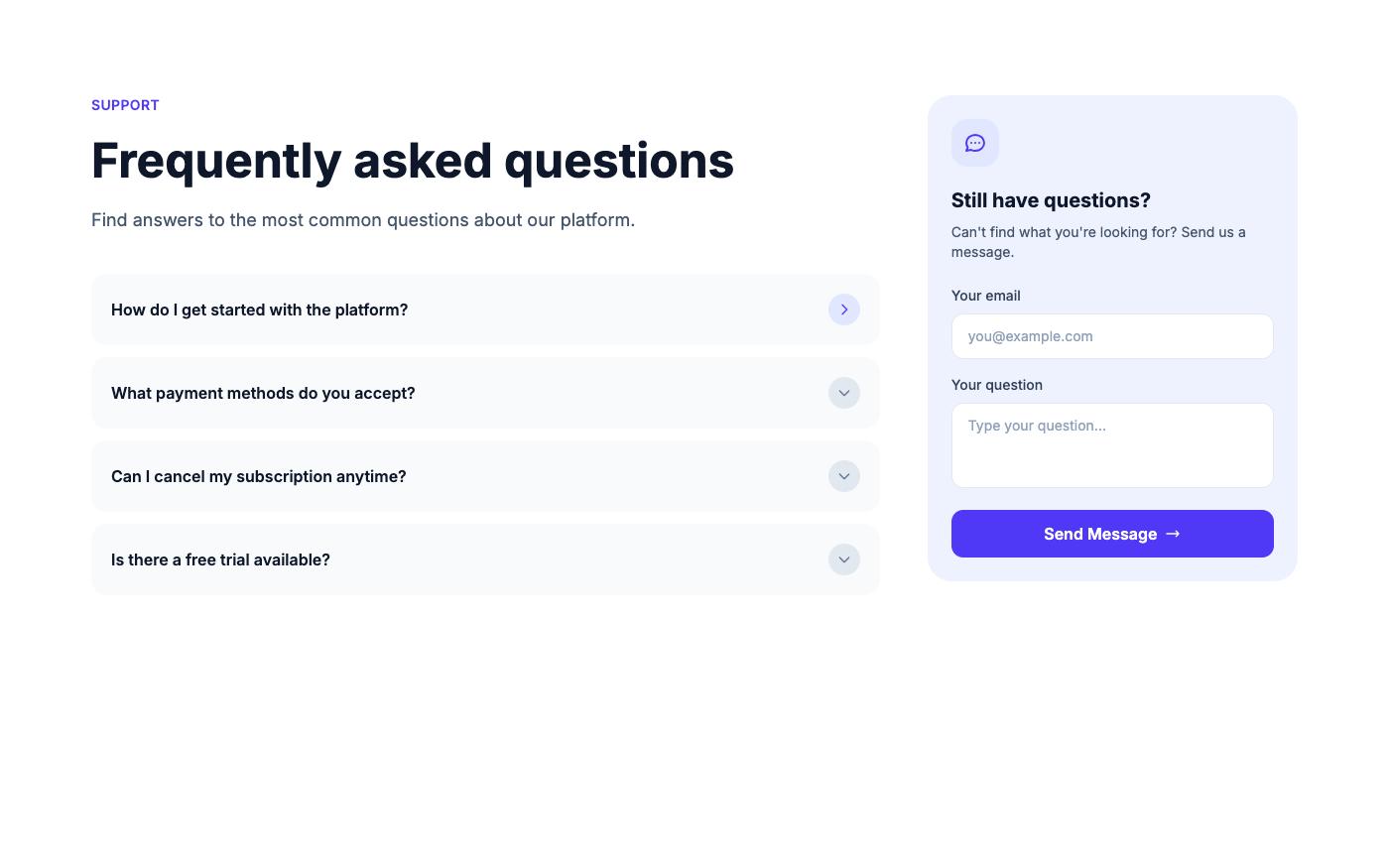
Browse more in the FAQ block library.
7. Build accessible forms
Forms collect the most accessibility bugs per line of markup. Check each field against this list:
- Every input has a
<label>linked withforandid. A visually hidden label (sr-only) is acceptable when the design has no visible label, but a visible one is better. - Error messages are linked with
aria-describedbyand do not rely on red color alone. - Required fields use the
requiredattribute, not only an asterisk. - Use
user-invalid:instead ofinvalid:so fields do not show an error before the user has interacted with them.
<label for="email" class="block text-sm font-medium text-neutral-900 dark:text-white">Email</label>
<input id="email" type="email" required autocomplete="email" aria-describedby="email-error"
       class="mt-1 block w-full rounded-lg border border-neutral-300 px-3 py-2 focus-visible:outline-2 focus-visible:outline-indigo-600 user-invalid:border-red-600 dark:border-neutral-700 dark:bg-neutral-900" />
<p id="email-error" class="mt-1 hidden text-sm text-red-700 dark:text-red-400">Enter a valid email address.</p>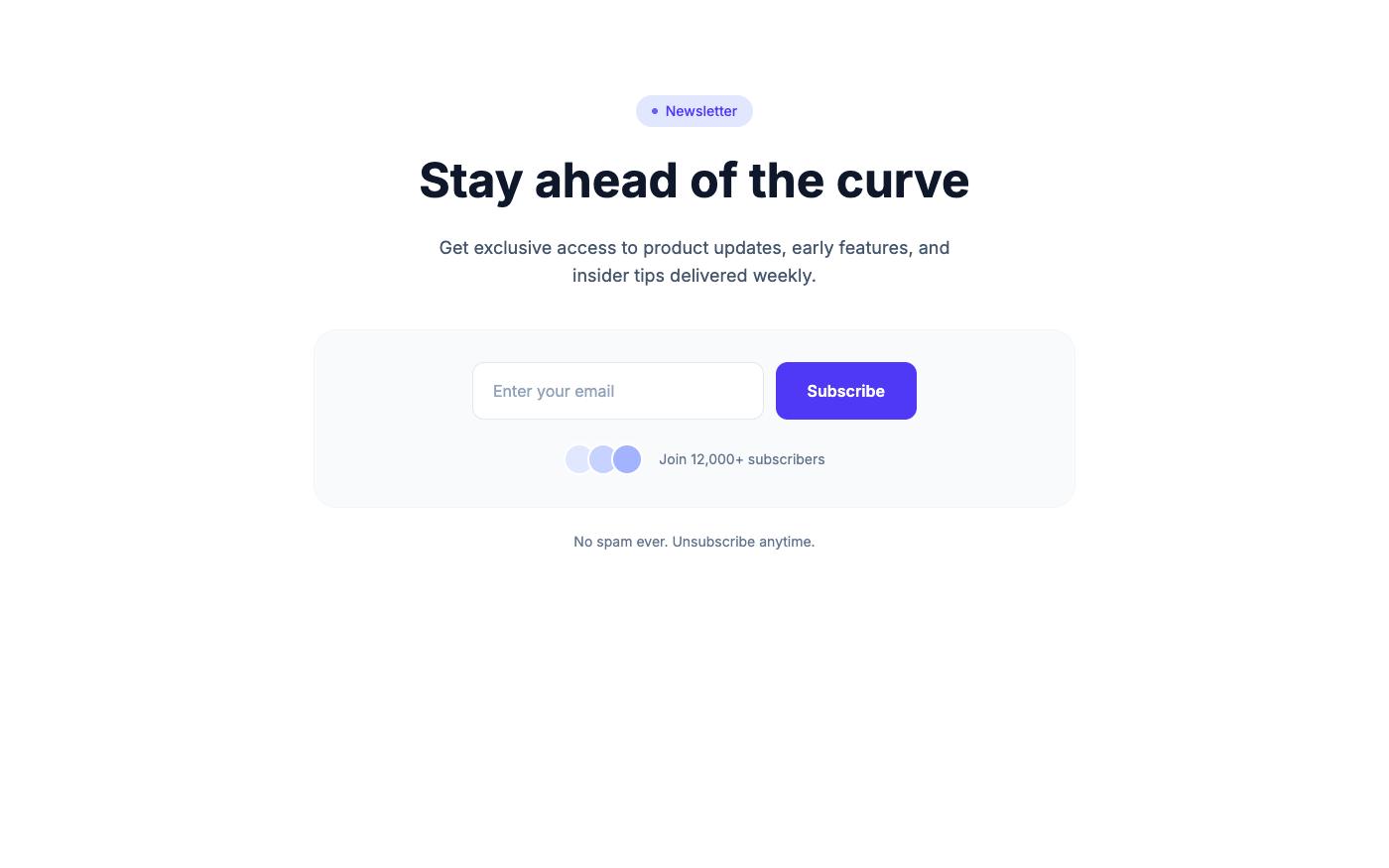
Newsletter and subscribe blocks often ship with placeholder-only inputs. When you copy one, add a label (visible or sr-only) before it goes live.
Testing tools
Automated checkers such as axe DevTools and Lighthouse catch missing labels, missing alt text and many contrast issues. They cannot judge whether alt text is useful or whether focus order makes sense. Finish every review by tabbing through the page with the keyboard and by trying a screen reader, such as VoiceOver on macOS or NVDA on Windows.
FAQ
Is Tailwind CSS accessible?
Tailwind is a styling tool, so accessibility depends on your markup. It does include useful helpers: sr-only, focus-visible:, motion-reduce:, contrast-more:, forced-colors: and ARIA variants.
Should I use outline-none or outline-hidden in v4?
Use outline-hidden when you remove the default outline, and always add a custom focus-visible: style. outline-hidden keeps an indicator in forced colors mode; outline-none does not.
How do I hide something from screen readers but keep it visible?
Add aria-hidden="true" to the element. This is right for decorative icons. Never put aria-hidden on an element that can receive focus.
Are OpenTailwind blocks accessible out of the box?
The blocks use semantic HTML and support light and dark mode, but you should still review them with this checklist after editing content, especially alt text, link text, labels and contrast for your brand colors.
Accessible Tailwind code comes down to a handful of habits: semantic elements first, a visible focus-visible: style on everything interactive, sr-only text where icons stand alone, contrast checked in both themes, motion that respects user settings, and forms with real labels. Run through these seven sections on each page before release and keep the keyboard test as the final step.