
Tailwind CSS flexbox starts with flex on a container, then flex-row or flex-col for direction, justify-* for the main axis, items-* for the cross axis and gap-* for spacing. Children are sized with flex-1, grow, shrink-0 and basis-*. This cheat sheet lists each group of utilities with the CSS it produces and the patterns where it's useful.
Table of contents
- Container: display, direction and wrap
- Justify and align
- Gap and spacing
- Sizing flex items: grow, shrink, basis
- Order and self-alignment
- Common flexbox patterns
- FAQ
Container: display, direction and wrap
| Class | CSS |
|---|---|
flex | display: flex |
inline-flex | display: inline-flex |
flex-row | flex-direction: row (the default) |
flex-row-reverse | flex-direction: row-reverse |
flex-col | flex-direction: column |
flex-col-reverse | flex-direction: column-reverse |
flex-wrap | flex-wrap: wrap |
flex-nowrap | flex-wrap: nowrap (the default) |
flex-wrap-reverse | flex-wrap: wrap-reverse |
Use inline-flex for buttons and badges that contain an icon and a label: the element stays inline with surrounding text but lays out its children in a row. Use flex for block-level rows like navbars and card footers.
The most common responsive move in Tailwind is switching direction at a breakpoint. Stack on mobile, sit side by side on larger screens:
<div class="flex flex-col gap-6 md:flex-row md:items-center">
  <img src="/product.jpg" alt="" class="w-full rounded-xl md:w-1/2" />
  <div class="md:w-1/2">
    <h2 class="text-3xl font-semibold">Product name</h2>
    <p class="mt-3 text-neutral-600 dark:text-neutral-400">Short description.</p>
  </div>
</div>
Justify and align
justify-* works on the main axis (horizontal in a row, vertical in a column). items-* works on the cross axis. When you switch to flex-col, the axes swap, which is the source of most "why isn't this centering?" confusion.
| Class | CSS |
|---|---|
justify-start | justify-content: flex-start |
justify-center | justify-content: center |
justify-end | justify-content: flex-end |
justify-between | justify-content: space-between |
justify-around | justify-content: space-around |
justify-evenly | justify-content: space-evenly |
items-start | align-items: flex-start |
items-center | align-items: center |
items-end | align-items: flex-end |
items-baseline | align-items: baseline |
items-stretch | align-items: stretch (the default) |
items-baseline is underused. When a row mixes a large price and a small "/month" label, baseline alignment lines up the text instead of the boxes, which looks noticeably cleaner than items-center.
Tailwind v4.1 added safe alignment variants such as justify-center-safe and items-center-safe. They center content while it fits and fall back to start alignment when it overflows, so content never gets clipped off the left or top edge of a scroll container.
Aligning wrapped lines
When a flex container wraps, content-* controls how the lines themselves are distributed along the cross axis: content-start, content-center, content-between and so on. It has no effect on a single-line container.
Gap and spacing
gap-* works in flexbox the same way it does in grid, and it is the preferred way to space flex items. gap-x-* and gap-y-* set each axis separately, which matters for wrapping rows of tags or buttons.
<ul class="flex flex-wrap gap-x-3 gap-y-2">
  <li class="rounded-full bg-neutral-100 px-3 py-1 text-sm dark:bg-neutral-800">Tailwind</li>
  <li class="rounded-full bg-neutral-100 px-3 py-1 text-sm dark:bg-neutral-800">CSS</li>
  <li class="rounded-full bg-neutral-100 px-3 py-1 text-sm dark:bg-neutral-800">Flexbox</li>
</ul>
The older space-x-* utilities still exist, but they add margins to children, which breaks when items wrap or when you conditionally hide one. In v4 the space utilities also changed their selector to target :not(:last-child), so prefer gap in new code.
Sizing flex items: grow, shrink, basis
| Class | CSS |
|---|---|
flex-1 | flex: 1 (grow and shrink, ignore initial size) |
flex-auto | flex: auto (grow and shrink from content size) |
flex-initial | flex: 0 auto (shrink only) |
flex-none | flex: none (fixed size) |
grow / grow-0 | flex-grow: 1 / 0 |
shrink / shrink-0 | flex-shrink: 1 / 0 |
basis-64 | flex-basis: calc(var(--spacing) * 64) |
basis-1/3 | flex-basis: calc(1 / 3 * 100%) |
The v3 names flex-grow and flex-shrink were removed in v4; use grow and shrink. Basis values follow the spacing scale, so any integer works (basis-72, basis-80), and fractions work too.
The min-w-0 rule
Flex items have min-width: auto by default, which means they refuse to shrink below their content. If a truncate class isn't working inside a flex row, add min-w-0 to the flex child that contains the text:
<div class="flex items-center gap-3">
  <img src="/avatar.jpg" alt="" class="size-10 shrink-0 rounded-full" />
  <div class="min-w-0 flex-1">
    <p class="truncate font-medium">A very long name that should be cut off</p>
    <p class="truncate text-sm text-neutral-500">[email protected]</p>
  </div>
</div>
Note the shrink-0 on the avatar: without it, the image gets squeezed when the text is long.
Order and self-alignment
order-first, order-last and order-* change visual order without touching the DOM. A typical use is putting an image above text on mobile but to the right on desktop: order-first md:order-last. Keep the DOM in the order that makes sense for reading and keyboard focus, and use order only for visual tweaks.
self-* overrides items-* for a single child: self-start, self-center, self-end, self-stretch. The ml-auto trick is also worth knowing. An auto margin on one item absorbs all free space, pushing it and everything after it to the far end. That's how most navbars put a button on the right while the links stay next to the logo.
Common flexbox patterns
Navbar
<header class="flex items-center gap-8 px-6 py-4">
  <a href="/" class="font-semibold">Brand</a>
  <nav class="hidden items-center gap-6 text-sm md:flex">
    <a href="#">Product</a>
    <a href="#">Pricing</a>
    <a href="#">Docs</a>
  </nav>
  <a href="#" class="ml-auto rounded-lg bg-neutral-900 px-4 py-2 text-sm text-white dark:bg-white dark:text-neutral-900">
    Sign up
  </a>
</header>
Equal-height cards with buttons at the bottom
Make each card a column and let the body grow. The button then sits at the bottom no matter how long the description is:
<article class="flex flex-col rounded-xl border border-neutral-200 p-6 dark:border-neutral-800">
  <h3 class="font-semibold">Plan name</h3>
  <p class="mt-2 flex-1 text-neutral-600 dark:text-neutral-400">Description of any length.</p>
  <a href="#" class="mt-6 rounded-lg bg-indigo-600 px-4 py-2 text-center text-white">Choose plan</a>
</article>
Full-height page with a sticky footer
A column layout where the main area grows keeps the footer at the bottom of short pages without fixed positioning:
<body class="flex min-h-dvh flex-col">
  <header>...</header>
  <main class="flex-1">...</main>
  <footer>...</footer>
</body>
Use min-h-dvh rather than min-h-screen if you want the layout to account for mobile browser toolbars. dvh tracks the visible viewport height as the toolbar shows and hides.
Footer columns that wrap
A footer with link groups is a good fit for flex flex-wrap with a basis on each group, so columns wrap naturally on narrower screens without breakpoint-specific classes.
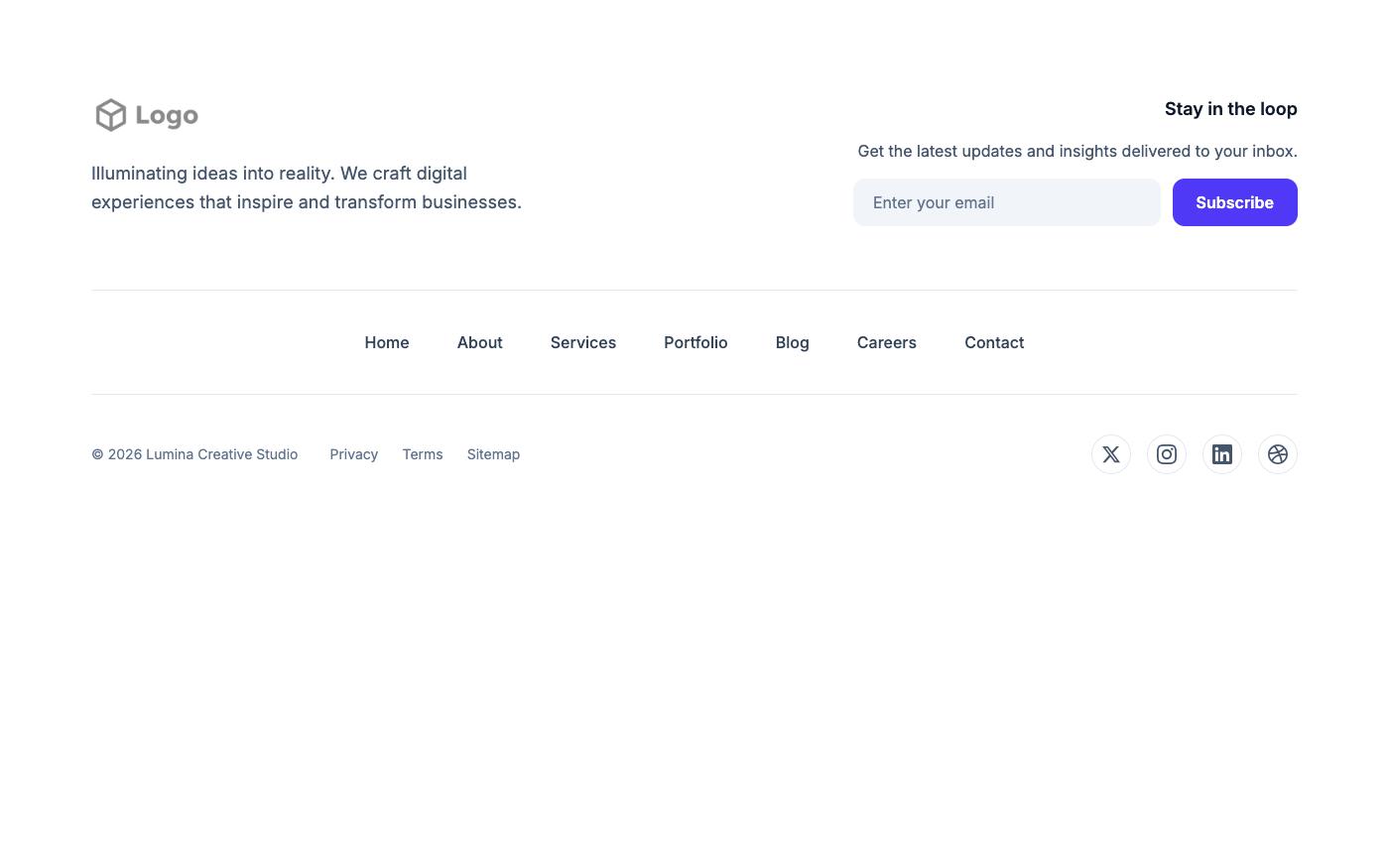
You'll find more flex-based headers and footers in the header blocks and footer blocks. Reading their markup is a quick way to see these utilities combined in production-style layouts.
FAQ
How do I center a div with Tailwind flexbox?
Add flex items-center justify-center to the parent and give it a height, for example min-h-dvh. With grid, grid place-items-center does the same in two classes.
What's the difference between flex-1 and grow?
flex-1 sets flex: 1, which also sets the basis to 0%, so all flex-1 siblings end up equal width. grow only sets flex-grow: 1 and keeps the content-based basis, so items grow from their natural size and may end up different widths.
Why doesn't justify-center center vertically in my column?
It does, but only if the column has extra height. In a flex-col container, justify-* is vertical, and the container is only as tall as its content unless you give it a height.
Did any flexbox utilities change in Tailwind v4?
Yes. flex-grow-* and flex-shrink-* were removed in favor of grow-* and shrink-*, basis-* now accepts any spacing value, and v4.1 added safe alignment such as justify-center-safe.
Most flexbox layouts come down to a handful of classes: flex, a direction, items-center, gap-*, and either flex-1 or shrink-0 on the children. Once those are second nature, the rest of this cheat sheet covers the edge cases, and min-w-0 and ml-auto handle the two problems that come up most often.