
Quick answer: use the native <dialog> element and open it with showModal(). The browser traps focus inside it, closes it on Escape, makes the rest of the page inert and renders it above everything else. Style the box with ordinary Tailwind classes and the dimmed background with the backdrop: variant, for example backdrop:bg-black/50.
Before <dialog> was widely supported, a modal needed a fixed overlay, a focus trap, scroll locking and careful ARIA. All current major browsers now support it, so most of that code is no longer needed. This guide shows a working confirmation modal, explains each part, and covers animation, forms, scroll locking and when to avoid a modal altogether.
A working modal
Complete HTML, CSS, and JavaScript
Use your compiled Tailwind stylesheet in place of /examples/tailwind.css. The example uses Tailwind CSS 4 utilities and vanilla JavaScript.
<!doctype html>
<html lang="en"><head><meta charset="utf-8"><meta name="viewport" content="width=device-width,initial-scale=1"><meta name="robots" content="noindex,follow"><title>A modal built on the native dialog element</title><link rel="stylesheet" href="/examples/tailwind.css"><style>body{font-family:system-ui,sans-serif;background:#faf9f6;color:#252824;padding:24px}button{cursor:pointer}button:disabled{cursor:wait;opacity:.6}:focus-visible{outline:3px solid #4f46e5;outline-offset:4px}</style></head><body><button id="open" type="button" class="rounded-lg bg-stone-900 px-4 py-2 font-medium text-white">Delete project</button>
<dialog id="confirm" aria-labelledby="confirm-title" class="m-auto w-full max-w-md rounded-2xl border border-stone-200 bg-white shadow-xl backdrop:bg-stone-900/50">
  <form method="dialog" class="p-6">
    <h2 id="confirm-title" class="text-lg font-semibold">Delete this project?</h2>
    <p class="mt-2 text-stone-600">This removes the project and its files. Demo only: nothing is deleted.</p>
    <div class="mt-6 flex justify-end gap-3">
      <button value="cancel" autofocus class="rounded-lg border border-stone-300 px-4 py-2">Cancel</button>
      <button value="delete" class="rounded-lg bg-red-700 px-4 py-2 font-medium text-white">Delete</button>
    </div>
  </form>
</dialog>
<p id="result" role="status" class="mt-4 text-sm text-stone-600"></p><script>const dialog = document.querySelector('#confirm');
const result = document.querySelector('#result');
document.querySelector('#open').addEventListener('click', () => dialog.showModal());
dialog.addEventListener('click', event => { if (event.target === dialog) dialog.close('cancel'); });
dialog.addEventListener('close', () => {
  result.textContent = dialog.returnValue === 'delete' ? 'You chose Delete.' : 'Cancelled. Nothing changed.';
});</script></body></html>
Open the dialog, then try Tab, Shift+Tab and Escape. Focus stays inside the dialog while it is open and returns to the "Delete project" button when it closes. Clicking the dimmed area also cancels.
The HTML and Tailwind classes
<button type="button" id="open-confirm" class="rounded-lg bg-neutral-900 px-4 py-2 text-white">
  Delete project
</button>

<dialog id="confirm" aria-labelledby="confirm-title"
        class="m-auto w-full max-w-md rounded-2xl bg-white shadow-xl backdrop:bg-neutral-900/50">
  <form method="dialog" class="p-6">
    <h2 id="confirm-title" class="text-lg font-semibold">Delete this project?</h2>
    <p class="mt-2 text-neutral-600">This removes the project and its files.</p>
    <div class="mt-6 flex justify-end gap-3">
      <button value="cancel" autofocus class="rounded-lg border px-4 py-2">Cancel</button>
      <button value="delete" class="rounded-lg bg-red-700 px-4 py-2 text-white">Delete</button>
    </div>
  </form>
</dialog>m-autocenters the dialog. Tailwind's base styles reset the browser's default margin, so add it back explicitly.w-full max-w-mdkeeps it full width on phones and capped on larger screens. The browser already keeps a small gap from the viewport edges.backdrop:bg-neutral-900/50styles the::backdroppseudo-element behind the dialog. Addbackdrop:backdrop-blur-smif you want blur.aria-labelledbypoints at the heading so screen readers announce the dialog's name when it opens.<form method="dialog">closes the dialog when either button is pressed and stores the button'svalueindialog.returnValue. No click handlers are needed for the buttons.autofocuson Cancel puts focus on the safe choice for a destructive action. For a form dialog, autofocus the first field instead.
The JavaScript
const dialog = document.getElementById('confirm');
document.getElementById('open-confirm').addEventListener('click', () => dialog.showModal());

// Optional: close when the backdrop is clicked
dialog.addEventListener('click', (e) => {
  if (e.target === dialog) dialog.close('cancel');
});

dialog.addEventListener('close', () => {
  if (dialog.returnValue === 'delete') {
    // Call your API here, then show the result
  }
});
The backdrop check works because clicks on ::backdrop are reported on the <dialog> element itself, while clicks inside the box hit its children. That is why the padding sits on the inner <form> rather than on the dialog: clicks on dialog padding would also count as outside clicks.
Use showModal(), not show(). show() opens a non-modal dialog without a backdrop, focus containment or Escape handling.
Animating open and close
Tailwind CSS v4 has an open: variant and a starting: variant for @starting-style. Combined with transition-discrete, they animate the dialog in and out without JavaScript in browsers that support them; others simply show it without a transition.
<dialog class="m-auto max-w-md rounded-2xl p-6
               opacity-0 scale-95 transition-all transition-discrete duration-200
               open:opacity-100 open:scale-100
               starting:open:opacity-0 starting:open:scale-95
               backdrop:bg-black/0 backdrop:transition-all backdrop:transition-discrete
               open:backdrop:bg-black/50 starting:open:backdrop:bg-black/0
               motion-reduce:transition-none">
Keep durations short, around 150 to 250 milliseconds, and turn the transition off with motion-reduce:.
Scrolling and long content
- Long dialogs: add
max-h-[85dvh] overflow-y-autoso the dialog scrolls inside itself on small screens. - Background scroll: the page behind a modal can still scroll with a mouse wheel in some browsers. Add
html:has(dialog[open]) { overflow: hidden; }to your CSS, or the Tailwind arbitrary variant[&:has(dialog[open])]:overflow-hiddenon<html>. - Full-screen sheets on mobile: combine
max-sm:mt-auto max-sm:mb-0 max-sm:max-w-none max-sm:rounded-b-noneto turn the dialog into a bottom sheet on phones.
When not to use a modal
A modal interrupts. Use it for decisions that must happen before the person continues, such as confirming a deletion, or for short focused tasks. Avoid it for:
- Newsletter prompts that appear on page load. They block the content the visitor came for.
- Long forms. A separate page is easier to bookmark, share and recover after an error.
- Success messages. A status message in the page is less disruptive; see the success notification guide.
- Image galleries on content sites, where a lightbox is a modal but should still let people close it in one step and navigate with the arrow keys.
React, Vue and Alpine.js
In React, keep a ref to the <dialog> and call showModal() and close() from an effect that watches your open state; listen for the close event to sync the state back when someone presses Escape. Headless UI's Dialog and Radix's Dialog provide the same behavior as components that you style with Tailwind. In Alpine.js, x-init="$watch('open', v => v ? $el.showModal() : $el.close())" on the dialog connects it to your state.
Modal-style layouts in the OpenTailwind library
These blocks include overlay patterns you can preview and adapt. Copying the code requires an account; selected blocks are free and Pro unlocks the full library.
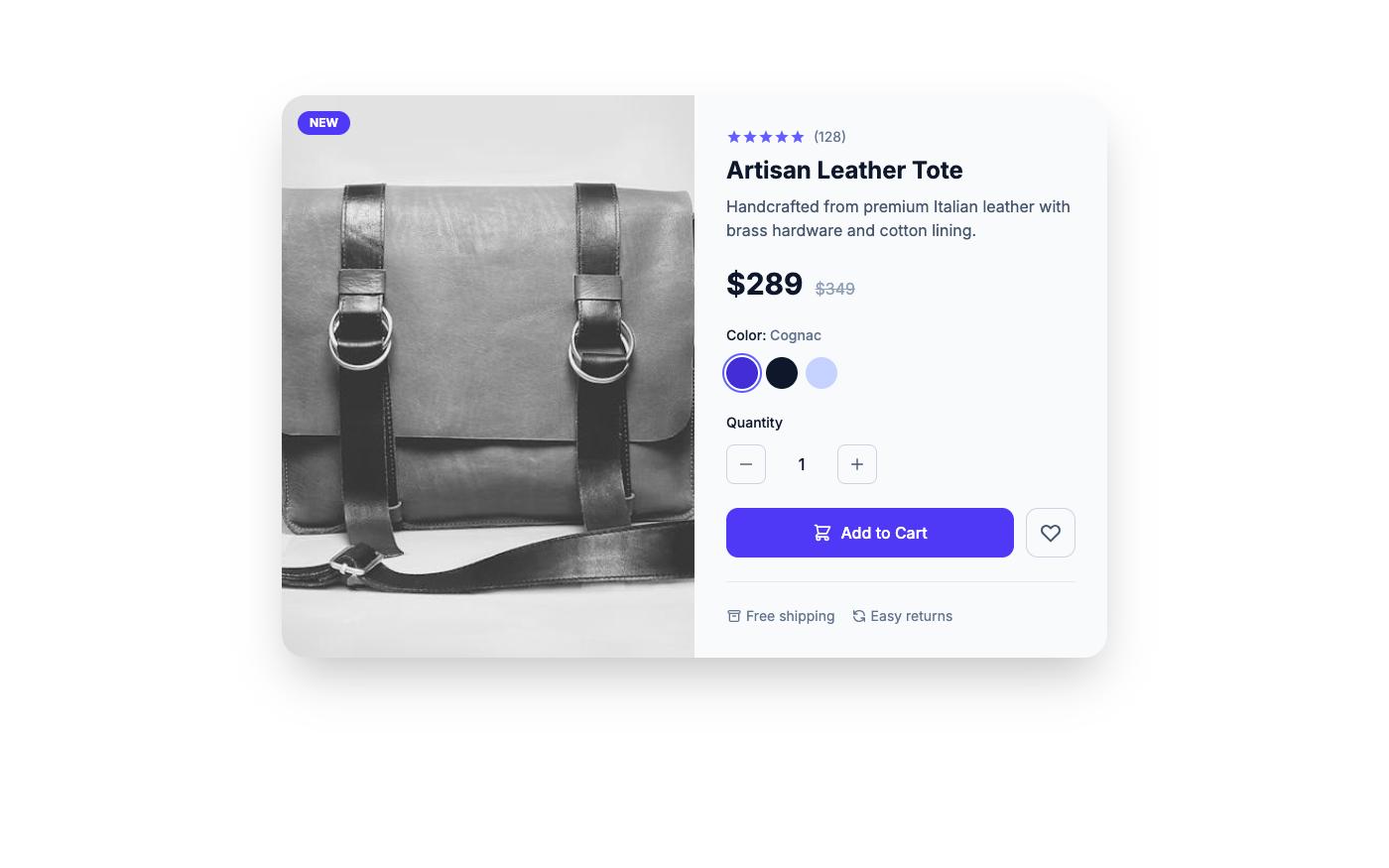

Before using either in production, check that its overlay uses <dialog> or equivalent focus handling, and apply the checklist below. Browse more in the product blocks and gallery blocks.
Modal checklist
- Opened with
showModal(), not by toggling ahiddendiv. - Has an accessible name through
aria-labelledbyoraria-label. - Focus starts on a sensible element and returns to the trigger on close.
- Escape closes it, and there is a visible close or cancel button.
- Content scrolls inside the dialog on short screens.
- The backdrop is dark enough to separate the dialog but text inside meets contrast in light and dark mode.
- Animations are disabled for reduced motion.
FAQ
Do I still need a focus trap with dialog?
No. A dialog opened with showModal() makes the rest of the document inert, so Tab and Shift+Tab stay inside it. Focus can still move to the browser's own interface, which is expected.
Can I stop Escape from closing the modal?
You can call preventDefault() on the cancel event, but browsers may ignore it after repeated presses, and blocking Escape frustrates keyboard users. Only do it if closing would lose work, and offer a clear alternative.
Why does my dialog appear in the top left corner?
Tailwind's base styles remove the browser's default margin: auto on dialogs. Add m-auto, or position it yourself.
Is the HTML dialog element supported everywhere?
Yes, in all current versions of Chrome, Edge, Firefox and Safari. The ::backdrop transitions and @starting-style are newer; browsers without them still open and close the dialog correctly.
Related: the dropdown menu tutorial uses the same focus-return pattern, and the forms styling guide covers the fields you might put inside a modal.