
Quick answer: a Tailwind CSS dropdown is a button with aria-expanded, a list of links positioned with absolute under it, and about 20 lines of JavaScript to open it, close it on Escape or an outside click, and move focus with the arrow keys. Tailwind handles the styling; it does not include dropdown behavior, so you write that part or use a headless library.
Below is a working example, the code explained line by line, a no-JavaScript version using the Popover API, and fixes for dropdowns that get cut off. At the end are navigation bars from the OpenTailwind library with dropdowns and mega menus.
A working dropdown
Complete HTML, CSS, and JavaScript
Use your compiled Tailwind stylesheet in place of /examples/tailwind.css. The example uses Tailwind CSS 4 utilities and vanilla JavaScript.
<!doctype html>
<html lang="en"><head><meta charset="utf-8"><meta name="viewport" content="width=device-width,initial-scale=1"><meta name="robots" content="noindex,follow"><title>A dropdown menu button with keyboard support</title><link rel="stylesheet" href="/examples/tailwind.css"><style>body{font-family:system-ui,sans-serif;background:#faf9f6;color:#252824;padding:24px}button{cursor:pointer}button:disabled{cursor:wait;opacity:.6}:focus-visible{outline:3px solid #4f46e5;outline-offset:4px}[hidden]{display:none!important}</style></head><body><div class="relative inline-block" id="account">
  <button id="trigger" type="button" aria-haspopup="true" aria-expanded="false" aria-controls="panel" class="inline-flex items-center gap-2 rounded-lg border border-stone-300 bg-white px-4 py-2 font-medium">
    Account <span aria-hidden="true">▾</span>
  </button>
  <ul id="panel" hidden class="absolute left-0 z-10 mt-2 w-48 rounded-xl border border-stone-200 bg-white p-1 shadow-lg">
    <li><a href="#profile" class="block rounded-lg px-3 py-2 hover:bg-stone-100 focus:bg-stone-100">Profile</a></li>
    <li><a href="#billing" class="block rounded-lg px-3 py-2 hover:bg-stone-100 focus:bg-stone-100">Billing</a></li>
    <li><a href="#team" class="block rounded-lg px-3 py-2 hover:bg-stone-100 focus:bg-stone-100">Team settings</a></li>
    <li class="mt-1 border-t border-stone-200 pt-1"><a href="#sign-out" class="block rounded-lg px-3 py-2 hover:bg-stone-100 focus:bg-stone-100">Sign out</a></li>
  </ul>
</div>
<p class="mt-48 text-sm text-stone-600">Open the menu with a click, Enter or Space. Use the arrow keys to move between links and Escape to close.</p><script>const trigger = document.querySelector('#trigger');
const panel = document.querySelector('#panel');
const links = () => [...panel.querySelectorAll('a')];
function setOpen(open, focusTrigger = false) {
  panel.hidden = !open;
  trigger.setAttribute('aria-expanded', String(open));
  if (!open && focusTrigger) trigger.focus();
}
trigger.addEventListener('click', () => setOpen(panel.hidden));
trigger.addEventListener('keydown', event => {
  if (event.key === 'ArrowDown') { event.preventDefault(); setOpen(true); links()[0].focus(); }
});
panel.addEventListener('keydown', event => {
  const items = links();
  const index = items.indexOf(document.activeElement);
  if (event.key === 'ArrowDown') { event.preventDefault(); items[(index + 1) % items.length].focus(); }
  if (event.key === 'ArrowUp') { event.preventDefault(); items[(index - 1 + items.length) % items.length].focus(); }
  if (event.key === 'Escape') setOpen(false, true);
});
panel.addEventListener('click', event => { if (event.target.closest('a')) setOpen(false); });
document.addEventListener('click', event => { if (!event.target.closest('#account')) setOpen(false); });
document.addEventListener('focusin', event => { if (!event.target.closest('#account')) setOpen(false); });</script></body></html>
Try it with the keyboard: Tab to the button, press Enter, then use the Down and Up arrow keys. Escape closes the menu and returns focus to the button. Tabbing away or clicking elsewhere closes it too.
The HTML and Tailwind classes
<div class="relative inline-block">
  <button type="button" aria-expanded="false" aria-controls="account-menu"
          class="inline-flex items-center gap-2 rounded-lg border border-neutral-300 bg-white px-4 py-2 font-medium">
    Account <span aria-hidden="true">▾</span>
  </button>
  <ul id="account-menu" hidden
      class="absolute right-0 z-20 mt-2 w-48 rounded-xl border border-neutral-200 bg-white p-1 shadow-lg">
    <li><a href="/profile/" class="block rounded-lg px-3 py-2 hover:bg-neutral-100 focus:bg-neutral-100">Profile</a></li>
    <li><a href="/billing/" class="block rounded-lg px-3 py-2 hover:bg-neutral-100 focus:bg-neutral-100">Billing</a></li>
  </ul>
</div>relativeon the wrapper makes it the positioning parent, soabsoluteplaces the panel under the button. Useright-0to align it with the button's right edge, orleft-0for the left.mt-2leaves a small gap;w-48keeps the width stable when item text changes.z-20lifts the panel above later content on the page.hiddenis the HTML attribute, not the Tailwind class. The script toggles it, and it also hides the menu from assistive technology while closed.focus:bg-neutral-100shows which item is focused when moving with the arrow keys.
The JavaScript
const button = document.querySelector('[aria-controls="account-menu"]');
const menu = document.getElementById('account-menu');
const items = () => [...menu.querySelectorAll('a')];

function setOpen(open, returnFocus = false) {
  menu.hidden = !open;
  button.setAttribute('aria-expanded', String(open));
  if (!open && returnFocus) button.focus();
}

button.addEventListener('click', () => setOpen(menu.hidden));
button.addEventListener('keydown', (e) => {
  if (e.key === 'ArrowDown') { e.preventDefault(); setOpen(true); items()[0].focus(); }
});
menu.addEventListener('keydown', (e) => {
  const list = items();
  const i = list.indexOf(document.activeElement);
  if (e.key === 'ArrowDown') { e.preventDefault(); list[(i + 1) % list.length].focus(); }
  if (e.key === 'ArrowUp') { e.preventDefault(); list[(i - 1 + list.length) % list.length].focus(); }
  if (e.key === 'Escape') setOpen(false, true);
});
const wrapper = button.parentElement;
document.addEventListener('click', (e) => {
  if (!wrapper.contains(e.target)) setOpen(false);
});
document.addEventListener('focusin', (e) => {
  if (!wrapper.contains(e.target)) setOpen(false);
});
The last two listeners close the menu after a click elsewhere on the page or when keyboard focus moves outside it, so no one leaves an open panel behind.
Menu roles or plain links?
If the dropdown contains links to other pages, which is the case for most site and account menus, keep plain links in a list and use the disclosure pattern shown here. The ARIA role="menu" and role="menuitem" pattern is meant for application-style menus of actions, like a text editor's Format menu, and it changes how screen readers announce and navigate the content. The WAI-ARIA disclosure navigation example explains the difference.
A dropdown without JavaScript: the Popover API
Current versions of Chrome, Edge, Firefox and Safari support the popover attribute. The browser opens the panel, closes it on Escape or an outside click, and draws it in the top layer, so it cannot be clipped by a parent with overflow: hidden.
<button popovertarget="team-menu" class="rounded-lg border px-4 py-2">Team</button>
<ul id="team-menu" popover
    class="m-0 mt-2 w-48 rounded-xl border border-neutral-200 bg-white p-1 shadow-lg
           [position-area:bottom_span-right]">
  <li><a href="/members/" class="block rounded-lg px-3 py-2 hover:bg-neutral-100">Members</a></li>
  <li><a href="/invites/" class="block rounded-lg px-3 py-2 hover:bg-neutral-100">Invites</a></li>
</ul>
Positioning is the catch. Popovers are centered in the viewport by default. CSS anchor positioning (position-anchor and position-area) attaches the panel to its button, and the button becomes the implicit anchor when it opens the popover. Browser support for anchor positioning is newer than for popovers, so test your target browsers and keep a JavaScript fallback for older ones. The Popover API also does not add arrow-key navigation.
Fixing a dropdown that is cut off or hidden
Most dropdown bugs are stacking or overflow problems, not Tailwind problems:
- Cut off at the edge of a card: a parent has
overflow-hiddenoroverflow-auto. Remove it, move the panel outside that parent, or use a popover. - Behind the next section: a parent with
transform,filteroropacitybelow 1 creates a new stacking context, so the panel'sz-indexonly applies inside it. Raise the parent'sz-indexinstead. - Off the right side of the screen: align the panel with
right-0, or measure the available space in JavaScript and flip it.
The z-index and overflow guide walks through each case with an interactive example.
Dark mode and hover-only menus
Add dark:border-neutral-700 dark:bg-neutral-900 to the panel and dark:hover:bg-neutral-800 to the items. Avoid menus that open only on hover with group-hover:block: they do not work on touch screens, and in Tailwind CSS v4 the hover: variant only applies on devices that support hover. If you want hover to open a desktop menu, make click and keyboard open it as well.
Navbars with dropdowns in the OpenTailwind library
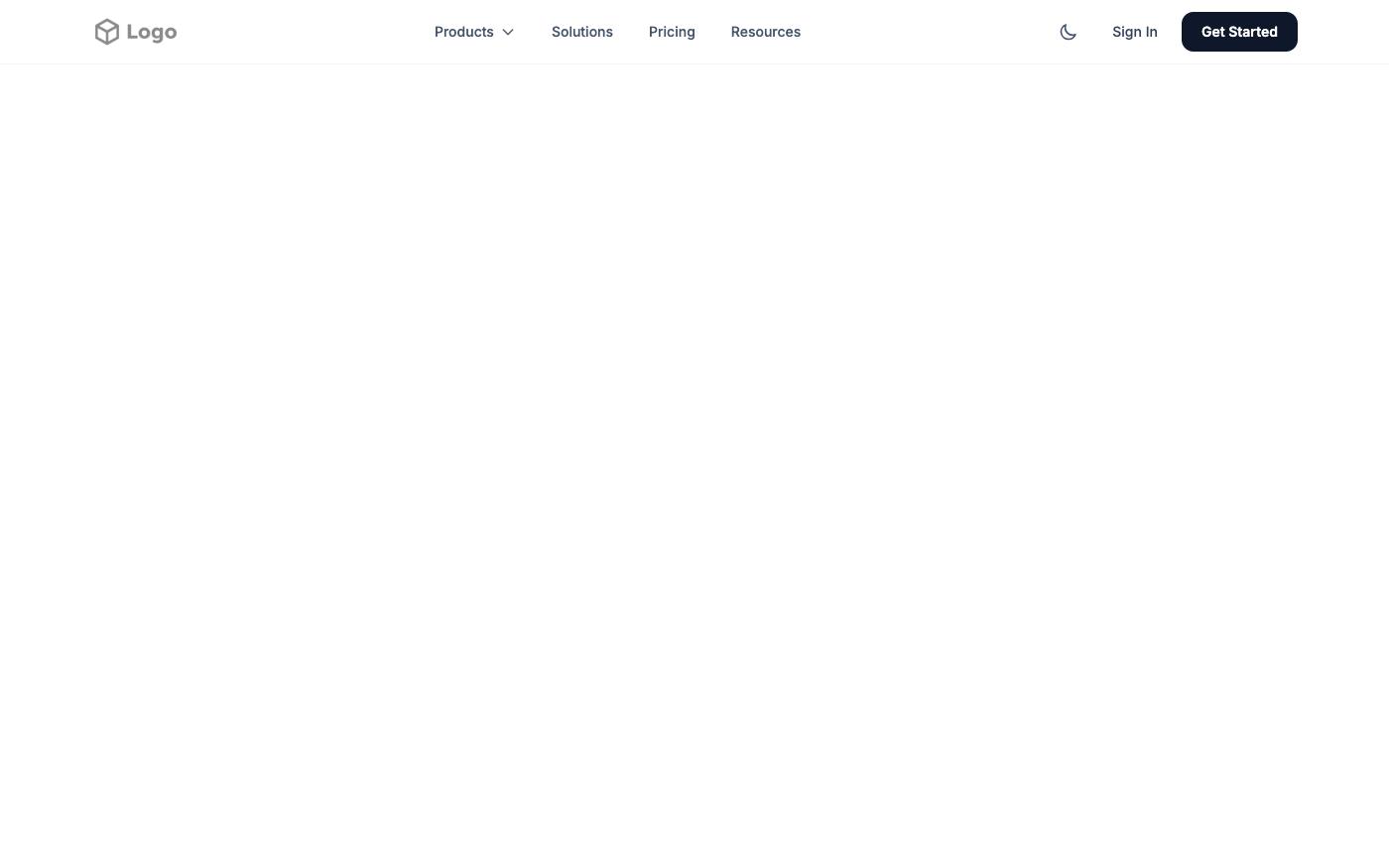
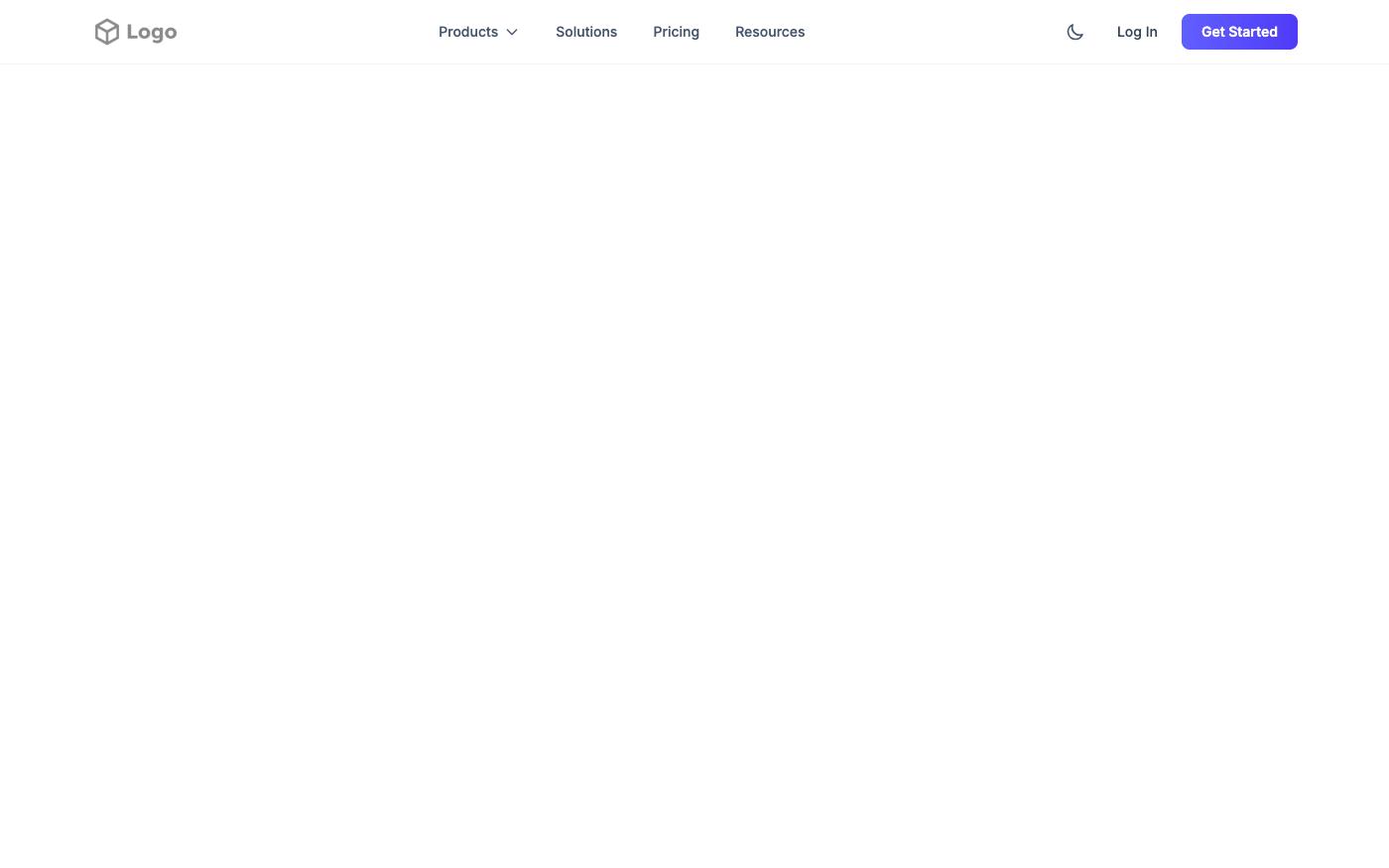
These headers include dropdowns or mega menus that you can preview and customize. Copying the code requires an account; selected blocks are free and Pro unlocks the full library.
Multi-level dropdown header
Mega menu header
More layouts
See the multiple dropdowns header and the Fresh mega menu, or browse every header block. For the mobile side of the same navbar, read the responsive navbar tutorial.
Dropdown checklist
- The trigger is a
<button>witharia-expandedthat matches the menu state. - The menu opens with a click, Enter and Space, not only on hover.
- Escape closes the menu and returns focus to the button.
- Clicking outside or tabbing away closes it.
- Focus styles are visible on every item.
- The panel is not clipped by a parent's overflow and sits above the content below it.
- On small screens, the panel fits the viewport or becomes part of the mobile menu.
FAQ
Does Tailwind CSS include a dropdown component?
No. Tailwind CSS provides utility classes only. You add the behavior with your own JavaScript, Alpine.js, the Popover API, or a headless library such as Headless UI's Menu or Radix's DropdownMenu for React.
How do I make a Tailwind dropdown with Alpine.js?
Put x-data="{ open: false }" on the wrapper, @click="open = !open" and :aria-expanded="open" on the button, and x-show="open", @click.outside="open = false" and @keydown.escape.window="open = false" on the panel. Add arrow-key handling if the menu has more than a few items.
Should a dropdown open on hover?
Not by default. Hover-only menus fail on touch devices and can open by accident. If you add hover on desktop, include a short close delay and keep click and keyboard support.
How do I animate the dropdown?
Toggle classes such as opacity-0 scale-95 and opacity-100 scale-100 with transition, and set origin-top-right so it grows from the button. In Tailwind CSS v4 you can also use starting: with a popover to animate it as it enters. Wrap motion in motion-safe:.
Related: Tailwind CSS modal dialogs use the same focus-return rules, and Tailwind CSS tabs use the same arrow-key pattern.