
Quick answer: build tabs as a role="tablist" of <button role="tab"> elements, each controlling a role="tabpanel". A short script sets aria-selected, shows the matching panel and moves between tabs with the arrow keys. Tailwind's aria-selected: variant styles the active tab straight from that attribute, so the visual state and the accessible state cannot drift apart.
This guide includes a working example, three common styles (underline, pills and vertical), the keyboard behavior people expect, and guidance on when tabs are the wrong choice. At the end are tabbed feature sections from the OpenTailwind library.
Working tabs
Complete HTML, CSS, and JavaScript
Use your compiled Tailwind stylesheet in place of /examples/tailwind.css. The example uses Tailwind CSS 4 utilities and vanilla JavaScript.
<!doctype html>
<html lang="en"><head><meta charset="utf-8"><meta name="viewport" content="width=device-width,initial-scale=1"><meta name="robots" content="noindex,follow"><title>Accessible tabs with arrow-key navigation</title><link rel="stylesheet" href="/examples/tailwind.css"><style>body{font-family:system-ui,sans-serif;background:#faf9f6;color:#252824;padding:24px}button{cursor:pointer}button:disabled{cursor:wait;opacity:.6}:focus-visible{outline:3px solid #4f46e5;outline-offset:4px}[hidden]{display:none!important}</style></head><body><div class="max-w-xl">
  <div role="tablist" aria-label="Plan details" class="flex gap-1 border-b border-stone-200">
    <button role="tab" id="tab-overview" aria-controls="panel-overview" aria-selected="true" class="-mb-px border-b-2 border-transparent px-4 py-2 font-medium text-stone-600 aria-selected:border-stone-900 aria-selected:text-stone-900">Overview</button>
    <button role="tab" id="tab-features" aria-controls="panel-features" aria-selected="false" tabindex="-1" class="-mb-px border-b-2 border-transparent px-4 py-2 font-medium text-stone-600 aria-selected:border-stone-900 aria-selected:text-stone-900">Features</button>
    <button role="tab" id="tab-pricing" aria-controls="panel-pricing" aria-selected="false" tabindex="-1" class="-mb-px border-b-2 border-transparent px-4 py-2 font-medium text-stone-600 aria-selected:border-stone-900 aria-selected:text-stone-900">Pricing</button>
  </div>
  <div role="tabpanel" id="panel-overview" aria-labelledby="tab-overview" tabindex="0" class="py-5">A shared calendar for small teams.</div>
  <div role="tabpanel" id="panel-features" aria-labelledby="tab-features" tabindex="0" hidden class="py-5">Booking links, reminders and time-zone support.</div>
  <div role="tabpanel" id="panel-pricing" aria-labelledby="tab-pricing" tabindex="0" hidden class="py-5">Sample pricing: $8 per user each month.</div>
</div>
<p class="text-sm text-stone-600">Focus a tab, then use the Left and Right arrow keys, Home or End.</p><script>const tabs = [...document.querySelectorAll('[role="tab"]')];
function select(tab) {
  for (const item of tabs) {
    const selected = item === tab;
    item.setAttribute('aria-selected', String(selected));
    item.tabIndex = selected ? 0 : -1;
    document.getElementById(item.getAttribute('aria-controls')).hidden = !selected;
  }
  tab.focus();
}
for (const tab of tabs) {
  tab.addEventListener('click', () => select(tab));
  tab.addEventListener('keydown', event => {
    const index = tabs.indexOf(tab);
    const next = { ArrowRight: tabs[(index + 1) % tabs.length], ArrowLeft: tabs[(index - 1 + tabs.length) % tabs.length], Home: tabs[0], End: tabs[tabs.length - 1] }[event.key];
    if (next) { event.preventDefault(); select(next); }
  });
}</script></body></html>
Click a tab, or focus the tab row and use Left, Right, Home and End. Only the selected tab is in the Tab order; pressing Tab from it moves focus into the visible panel.
The markup
<div role="tablist" aria-label="Plan details" class="flex gap-1 border-b border-neutral-200">
  <button role="tab" id="tab-overview" aria-controls="panel-overview" aria-selected="true"
          class="-mb-px border-b-2 border-transparent px-4 py-2 font-medium text-neutral-600
                 aria-selected:border-neutral-900 aria-selected:text-neutral-900">
    Overview
  </button>
  <button role="tab" id="tab-features" aria-controls="panel-features" aria-selected="false" tabindex="-1"
          class="-mb-px border-b-2 border-transparent px-4 py-2 font-medium text-neutral-600
                 aria-selected:border-neutral-900 aria-selected:text-neutral-900">
    Features
  </button>
</div>

<div role="tabpanel" id="panel-overview" aria-labelledby="tab-overview" tabindex="0" class="py-5">…</div>
<div role="tabpanel" id="panel-features" aria-labelledby="tab-features" tabindex="0" hidden class="py-5">…</div>aria-labelon the tablist names the group, for example "Plan details".aria-controlsandaria-labelledbylink each tab to its panel in both directions.tabindex="-1"on unselected tabs keeps only one tab in the Tab sequence. This is the "roving tabindex" technique.-mb-pxwithborder-b-2makes the active underline sit on top of the tablist's bottom border.aria-selected:is a built-in Tailwind variant. It applies whenaria-selected="true".tabindex="0"on panels lets keyboard users reach a panel that has no focusable content.
The JavaScript
const tabs = [...document.querySelectorAll('[role="tab"]')];

function select(tab) {
  for (const t of tabs) {
    const selected = t === tab;
    t.setAttribute('aria-selected', String(selected));
    t.tabIndex = selected ? 0 : -1;
    document.getElementById(t.getAttribute('aria-controls')).hidden = !selected;
  }
  tab.focus();
}

for (const tab of tabs) {
  tab.addEventListener('click', () => select(tab));
  tab.addEventListener('keydown', (e) => {
    const i = tabs.indexOf(tab);
    const next = {
      ArrowRight: tabs[(i + 1) % tabs.length],
      ArrowLeft: tabs[(i - 1 + tabs.length) % tabs.length],
      Home: tabs[0],
      End: tabs[tabs.length - 1],
    }[e.key];
    if (next) { e.preventDefault(); select(next); }
  });
}
This selects a tab as soon as it receives focus, which the WAI-ARIA tabs pattern recommends when panels display quickly. If a panel loads data, move focus with the arrow keys but only select on Enter or Space, so people can move past tabs without triggering requests. For vertical tabs, use Up and Down instead of Left and Right and add aria-orientation="vertical" to the tablist.
Three tab styles
Underline
The example above. It works well inside content and settings pages because it adds little visual weight.
Pills
<div role="tablist" class="inline-flex gap-1 rounded-full bg-neutral-100 p-1">
  <button role="tab" aria-selected="true"
          class="rounded-full px-4 py-1.5 text-sm font-medium text-neutral-600
                 aria-selected:bg-white aria-selected:text-neutral-900 aria-selected:shadow-sm">
    Monthly
  </button>
  …
</div>
Pill tabs, sometimes called a segmented control, suit short choices such as switching between two or three views. If the choice changes a setting rather than showing a different panel, such as monthly versus yearly pricing, a radio group or a toggle button with aria-pressed describes it more accurately. The pricing page tutorial uses that approach.
Vertical
<div class="grid gap-6 md:grid-cols-[14rem_1fr]">
  <div role="tablist" aria-orientation="vertical" class="flex gap-1 overflow-x-auto md:flex-col">
    <button role="tab" aria-selected="true"
            class="rounded-lg px-4 py-2 text-left aria-selected:bg-neutral-100 aria-selected:font-semibold">
      Profile
    </button>
    …
  </div>
  <div role="tabpanel">…</div>
</div>
Vertical tabs fit longer labels and many sections. On small screens this layout turns the list into a horizontal row that scrolls sideways; for more than five or six tabs, a <select> may be easier to use on a phone.
When tabs are the wrong choice
- Content people need to compare. Tabs hide everything except one panel. If visitors switch back and forth to compare plans or specs, use a table or side-by-side cards.
- Content people need to scan in full. On a FAQ, an accordion or plain headings let readers see all questions at once.
- Separate pages. If each "tab" should have its own URL and be found in search, make them links to separate pages styled as tabs, and mark the current one with
aria-current="page", notrole="tab".
Is content in hidden tabs indexed?
Panels hidden with the hidden attribute are still in the HTML, so search engines can read them. Content that only loads when a tab is clicked is not in the initial HTML and may not be indexed. If the panels matter for search, render all of them on the server and hide the inactive ones.
Tabbed sections in the OpenTailwind library
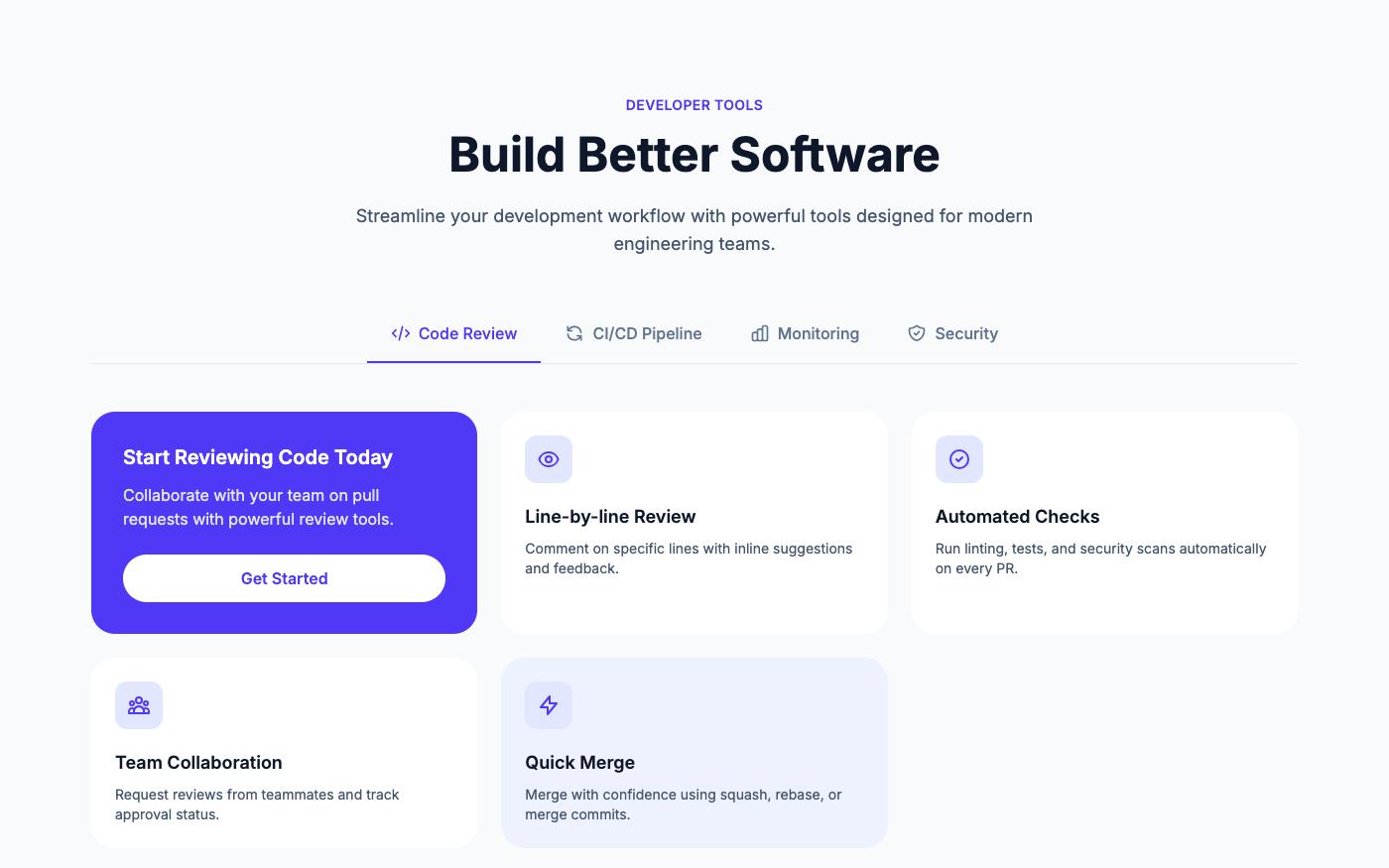
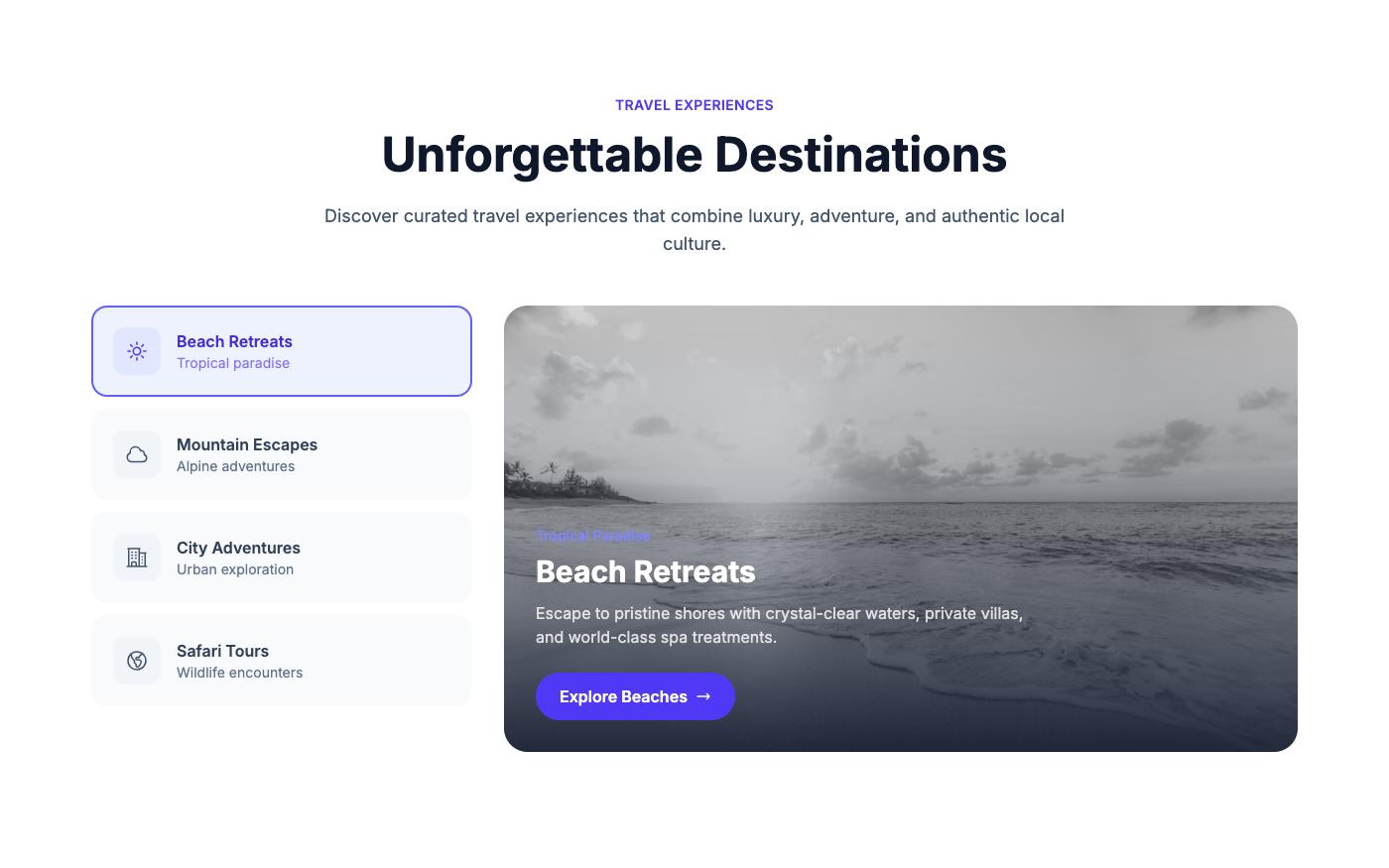
These feature sections use tabs to show one product area at a time. Copying the code requires an account; selected blocks are free and Pro unlocks the full library. Check that any tabs you copy use the roles and keyboard support described above.
Underline tabs with content
Vertical tabs
More layouts
See the pill tabs section, the tabbed gallery and the tabs showcase, or browse all feature blocks.
Tabs checklist
- The tablist has a label, and each tab and panel reference each other.
- Only the selected tab has
tabindex="0". - Arrow keys move between tabs; Home and End jump to the first and last.
- The active style comes from
aria-selected, not a separate class. - The active tab is distinguishable without color alone, for example by an underline or background.
- Tabs fit or scroll on narrow screens, and their labels do not wrap awkwardly.
FAQ
Can I make tabs without JavaScript?
You can build a visual tab switcher with radio inputs or :target, but it will not have the expected tab semantics or keyboard behavior. For real tabs, use the short script above, or a headless library such as Headless UI's TabGroup or Radix's Tabs in React.
How do I style the active tab in Tailwind?
Use the aria-selected: variant on each tab, for example aria-selected:border-indigo-600 aria-selected:text-indigo-600. For a parent-based style, add group to the tab and use group-aria-selected: on its children.
How do I keep the selected tab after a reload?
Store the selected tab's id in the URL hash or query string and select it on page load. That also lets people share a link to a specific tab.
How do I build tabs with Alpine.js?
Keep the selected tab in x-data="{ tab: 'overview' }", bind :aria-selected="tab === 'overview'" and :tabindex on each tab, and use x-show="tab === 'overview'" on each panel. Add @keydown.right and @keydown.left handlers for arrow-key support.
Related: the dropdown menu tutorial uses the same arrow-key pattern, and the accessibility checklist covers focus styles for every component.