
Quick answer: wrap the <table> in a div with overflow-x-auto so it scrolls sideways on small screens, give cells padding with px-4 py-3, separate rows with divide-y on <tbody>, and stripe them with even:bg-neutral-50. For long tables, add sticky top-0 to <thead> and set a maximum height on the wrapper.
Tailwind does not ship table components, and its base styles remove most browser table styling, so every table starts plain. This guide covers the classes that matter, a working demo with a sticky header, accessibility markup, dark mode, and the stacked layout for phones. At the end are pricing and feature comparison tables from the OpenTailwind library.
A responsive table with a sticky header
Complete HTML, CSS, and JavaScript
Use your compiled Tailwind stylesheet in place of /examples/tailwind.css. The example uses Tailwind CSS 4 utilities and vanilla JavaScript.
<!doctype html>
<html lang="en"><head><meta charset="utf-8"><meta name="viewport" content="width=device-width,initial-scale=1"><meta name="robots" content="noindex,follow"><title>A responsive table with a sticky header</title><link rel="stylesheet" href="/examples/tailwind.css"><style>body{font-family:system-ui,sans-serif;background:#faf9f6;color:#252824;padding:24px}button{cursor:pointer}button:disabled{cursor:wait;opacity:.6}:focus-visible{outline:3px solid #4f46e5;outline-offset:4px}</style></head><body><div class="max-h-72 overflow-auto rounded-2xl border border-stone-200 bg-white">
  <table class="w-full min-w-[36rem] border-collapse text-left text-sm">
    <caption class="sr-only">Sample orders</caption>
    <thead class="sticky top-0 bg-stone-100 text-stone-700">
      <tr>
        <th scope="col" class="px-4 py-3 font-semibold">Order</th>
        <th scope="col" class="px-4 py-3 font-semibold">Customer</th>
        <th scope="col" class="px-4 py-3 font-semibold">Status</th>
        <th scope="col" class="px-4 py-3 text-right font-semibold">Total</th>
      </tr>
    </thead>
    <tbody class="divide-y divide-stone-200">
      <tr class="even:bg-stone-50"><th scope="row" class="px-4 py-3 font-medium">#1042</th><td class="px-4 py-3">Ana Ruiz</td><td class="px-4 py-3">Paid</td><td class="px-4 py-3 text-right tabular-nums">$120.00</td></tr>
      <tr class="even:bg-stone-50"><th scope="row" class="px-4 py-3 font-medium">#1043</th><td class="px-4 py-3">Sam Lee</td><td class="px-4 py-3">Pending</td><td class="px-4 py-3 text-right tabular-nums">$48.50</td></tr>
      <tr class="even:bg-stone-50"><th scope="row" class="px-4 py-3 font-medium">#1044</th><td class="px-4 py-3">Priya Shah</td><td class="px-4 py-3">Refunded</td><td class="px-4 py-3 text-right tabular-nums">$75.00</td></tr>
      <tr class="even:bg-stone-50"><th scope="row" class="px-4 py-3 font-medium">#1045</th><td class="px-4 py-3">Jonas Berg</td><td class="px-4 py-3">Paid</td><td class="px-4 py-3 text-right tabular-nums">$310.25</td></tr>
      <tr class="even:bg-stone-50"><th scope="row" class="px-4 py-3 font-medium">#1046</th><td class="px-4 py-3">Mei Chen</td><td class="px-4 py-3">Paid</td><td class="px-4 py-3 text-right tabular-nums">$19.00</td></tr>
      <tr class="even:bg-stone-50"><th scope="row" class="px-4 py-3 font-medium">#1047</th><td class="px-4 py-3">Omar Haddad</td><td class="px-4 py-3">Pending</td><td class="px-4 py-3 text-right tabular-nums">$64.80</td></tr>
      <tr class="even:bg-stone-50"><th scope="row" class="px-4 py-3 font-medium">#1048</th><td class="px-4 py-3">Lena Novak</td><td class="px-4 py-3">Paid</td><td class="px-4 py-3 text-right tabular-nums">$92.10</td></tr>
    </tbody>
  </table>
</div>
<p class="mt-3 text-sm text-stone-600">Sample data. Scroll inside the table; narrow the window to scroll sideways.</p></body></html>
Scroll inside the table and the header stays in place. Narrow the window below about 576 pixels and the table scrolls sideways instead of squeezing the columns.
A basic table
<div class="overflow-x-auto rounded-xl border border-neutral-200">
  <table class="w-full min-w-[36rem] text-left text-sm">
    <caption class="sr-only">Recent orders</caption>
    <thead class="bg-neutral-50 text-neutral-700">
      <tr>
        <th scope="col" class="px-4 py-3 font-semibold">Order</th>
        <th scope="col" class="px-4 py-3 font-semibold">Customer</th>
        <th scope="col" class="px-4 py-3 text-right font-semibold">Total</th>
      </tr>
    </thead>
    <tbody class="divide-y divide-neutral-200">
      <tr>
        <th scope="row" class="px-4 py-3 font-medium">#1042</th>
        <td class="px-4 py-3">Ana Ruiz</td>
        <td class="px-4 py-3 text-right tabular-nums">$120.00</td>
      </tr>
    </tbody>
  </table>
</div>overflow-x-autoon the wrapper, not the table. Tables do not scroll on their own.min-w-[36rem]stops the columns from collapsing into unreadable widths before scrolling starts. Pick a width that fits your content.<caption>names the table for screen readers. Keep it visible if it helps everyone, or usesr-onlyif a visible heading already says the same thing.scope="col"andscope="row"tell assistive technology which headers describe each cell.text-right tabular-numsright-aligns numbers and makes every digit the same width, so values line up by decimal place.
Striped rows and hover states
<tbody class="divide-y divide-neutral-200">
  <tr class="even:bg-neutral-50 hover:bg-indigo-50/60">…</tr>
</tbody>
even: and odd: are built-in Tailwind variants. Stripes help on wide tables where the eye can lose its row; on short tables, borders alone are usually enough. Keep the hover color subtle, and only add it if rows are clickable or the table is wide.
If a whole row links somewhere, put a real link in the first cell and let it cover the row with an after:absolute after:inset-0 pseudo-element on a relative row. A click handler on <tr> alone is not reachable by keyboard.
Sticky header and first column
<div class="max-h-96 overflow-auto">
  <table class="w-full border-separate border-spacing-0">
    <thead class="sticky top-0 z-10 bg-white">
      <tr><th class="border-b border-neutral-200 px-4 py-3">…</th></tr>
    </thead>
    <tbody>
      <tr>
        <th scope="row" class="sticky left-0 bg-white border-b border-neutral-200 px-4 py-3">…</th>
        <td class="border-b border-neutral-200 px-4 py-3">…</td>
      </tr>
    </tbody>
  </table>
</div>- The wrapper needs a height limit (
max-h-96) andoverflow-autofor a sticky header to have something to stick to. - Sticky cells need a background color, or rows will show through them.
- With
border-collapse, borders on sticky cells can scroll away from the cell in some browsers. Useborder-separate border-spacing-0and put borders on the cells, as above.
Stacked rows on phones
Horizontal scrolling works well for data tables. For short tables with few columns, such as a schedule or a plan summary, you can stack each row into a card below the sm breakpoint:
<table class="w-full text-sm">
  <thead class="max-sm:sr-only">…</thead>
  <tbody>
    <tr class="block border-b py-3 sm:table-row sm:py-0">
      <td data-label="Day" class="flex justify-between gap-4 py-1 sm:table-cell sm:px-4 sm:py-3
                                  max-sm:before:font-semibold max-sm:before:content-[attr(data-label)]">Monday</td>
      …
    </tr>
  </tbody>
</table>
Changing a table's display value can remove its table semantics in some browsers, so screen readers may no longer announce headers. If you stack rows, test with a screen reader, or add role="table", role="row" and role="cell" back explicitly. For data people need to compare, prefer horizontal scrolling.
Dark mode
<div class="overflow-x-auto rounded-xl border border-neutral-200 dark:border-neutral-800">
  <table class="w-full text-left text-sm text-neutral-700 dark:text-neutral-300">
    <thead class="bg-neutral-50 dark:bg-neutral-900">…</thead>
    <tbody class="divide-y divide-neutral-200 dark:divide-neutral-800">
      <tr class="even:bg-neutral-50 dark:even:bg-neutral-900/50">…</tr>
    </tbody>
  </table>
</div>
Stripes need much less contrast in dark mode than in light mode. Check that the header text and any status badges still meet contrast requirements in both themes. The color palette cheat sheet lists dark mode pairs for each shade.
Comparison tables for pricing and features
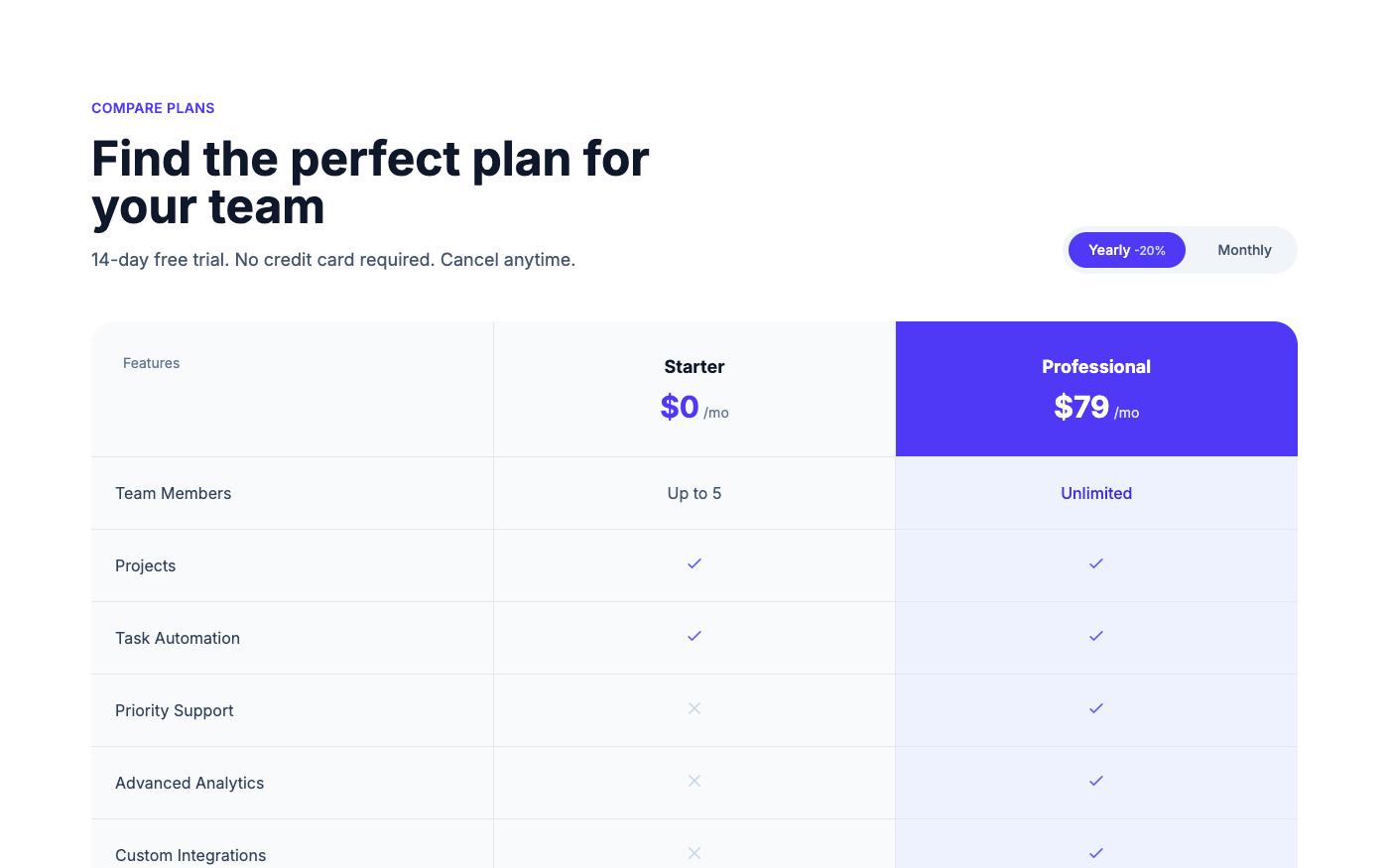
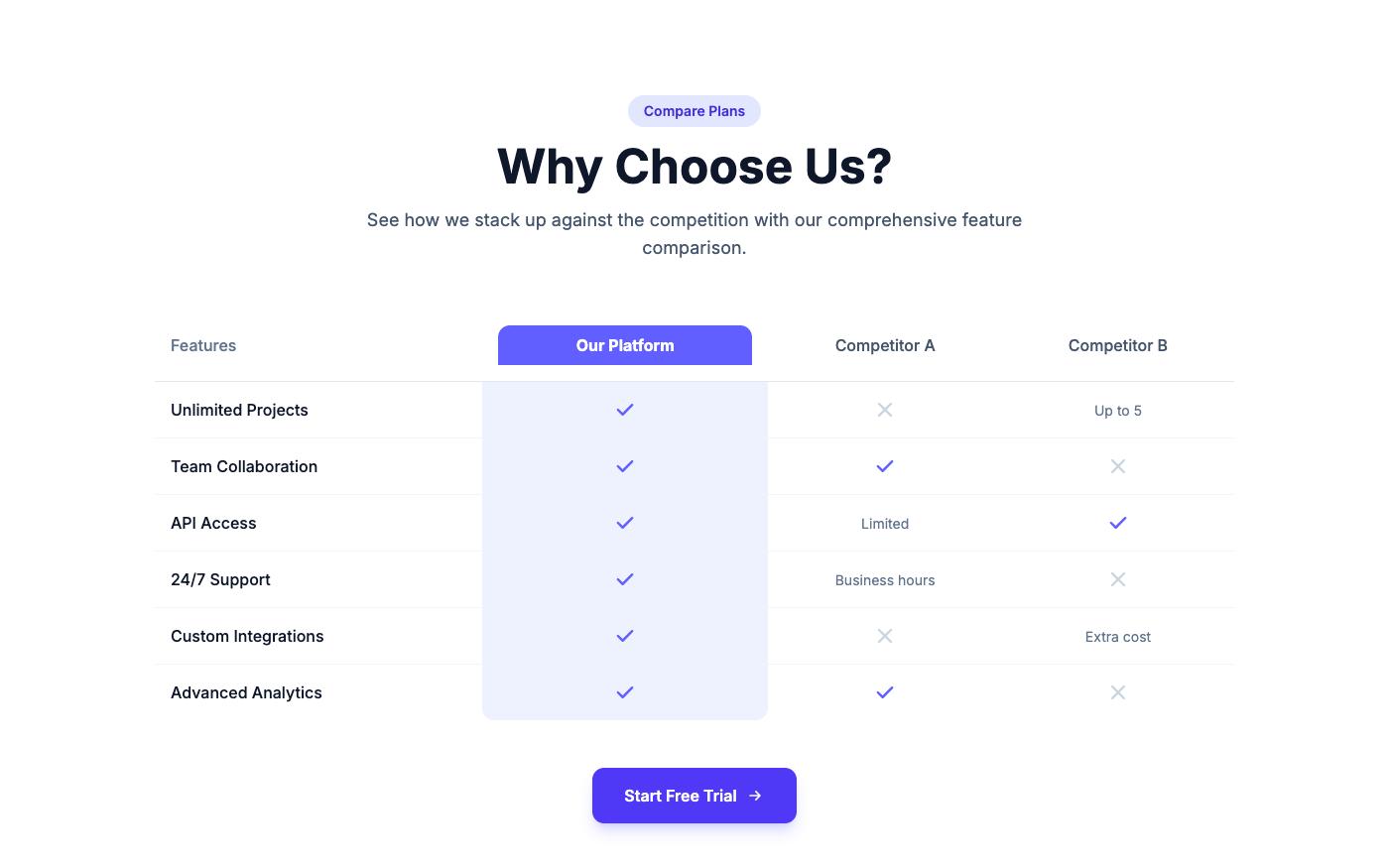
On marketing pages, the most common table is a plan comparison. A few rules make them easier to read:
- Put plan names in the header row and features in the first column as row headers.
- Use text, not only icons, for yes and no: a check mark with
<span class="sr-only">Included</span>, and a dash with "Not included". - Group long feature lists under subheadings with a row that spans all columns (
colspan). - Keep the plan names visible with a sticky header when the table is long.
Pricing comparison table
Feature comparison table
Also see the Fresh pricing comparison table and all pricing blocks. Copying the code requires an account; selected blocks are free and Pro unlocks the full library.
Table checklist
- Use a real
<table>for tabular data, not a grid ofdivs. - Headers use
<th>withscope, and the table has a caption or a heading that names it. - The wrapper scrolls horizontally on small screens, and the scroll area is keyboard reachable if it can receive focus.
- Numbers are right-aligned with
tabular-nums. - Status is not shown by color alone.
- Sticky headers and columns have a background color.
FAQ
Why does my Tailwind table have no borders or spacing?
Tailwind's base styles reset table borders and set border-collapse: collapse. Add padding to cells and borders with border, divide-y or border-b on rows or cells.
How do I make a table scroll horizontally in Tailwind?
Wrap it in <div class="overflow-x-auto"> and give the table a minimum width, such as min-w-[36rem] or min-w-max. If the scroll area holds no focusable elements, add tabindex="0", a role of region and an aria-label to the wrapper so keyboard users can scroll it.
How do I set column widths?
Add table-fixed to the table and width classes such as w-1/3 or w-40 to the header cells. With the default table-auto, the browser sizes columns from their content.
How do I truncate long text in a cell?
Use max-w-xs truncate on the cell, or on an inner element, and put the full text in a title attribute or a details view. Truncation works best with table-fixed.
Related: the grid layout guide covers card layouts for content that does not need a table, and the pricing page tutorial builds the plan cards that usually sit above a comparison table.